


1. Introduction
The 524WiFi and Wallys DR5018S router board, based on the Qualcomm IPQ5018 chipset, is widely used in industrial wireless applications. VLAN functionality allows network segmentation, optimized traffic management, and enhanced security. This guide provides a step-by-step tutorial to configure Access VLAN and Trunk VLAN on the DR5018S.


2. Understanding VLAN, Access, and Trunk

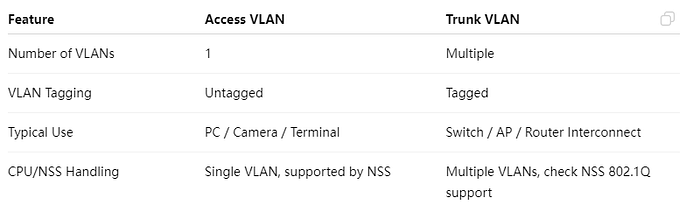
Access VS Trunk
3. Prerequisites
- Wallys DR5018S router, firmware: wallys firmware
- Admin access via Web GUI or SSH
- VLAN ID plan and IP addressing plan
- Optional: VLAN-aware NIC or Vlan Switch for testing
4. VLAN Configuration on DR5018S
Steps:
- Log in to the Web GUI.
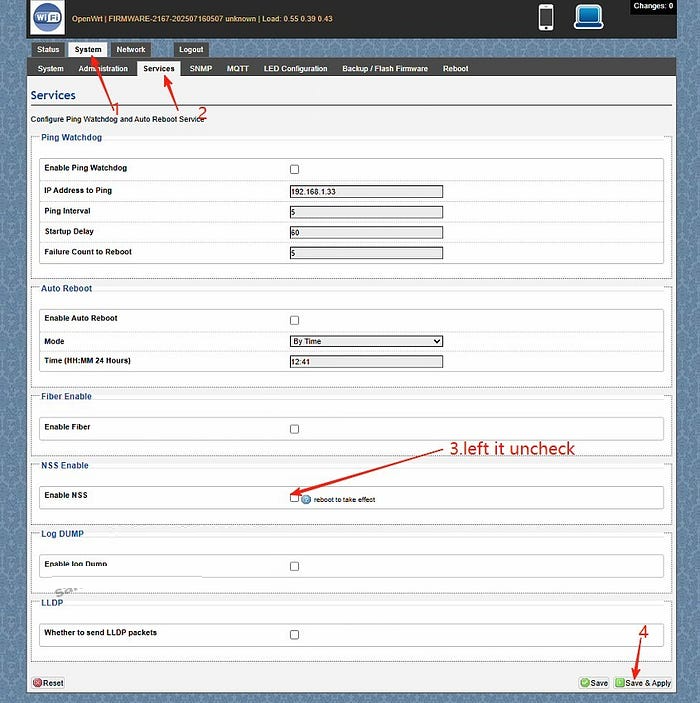
- Go to System → Services. Left the Enable NSS uncheck and click “save and apply”
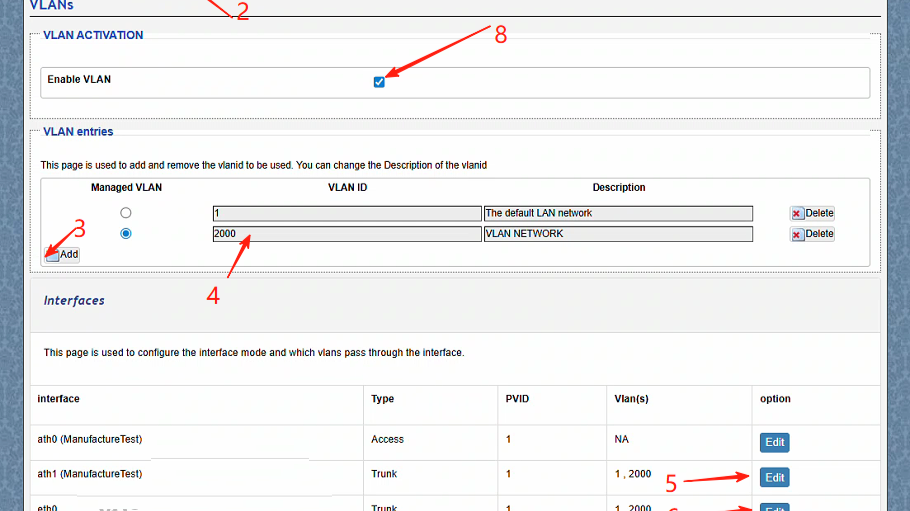
- Go to Network → Vlans.Create a VLAN (e.g., VLAN 2000).
- Edit the ath1(the working radio) and eth0(the ethernet port connected) port mode to Trunk.
- ath1 setting:Select type Trunk,Assign the PVID as 1,select Vlans 2000,save changes
- ath1 setting:Select type Trunk,Assign the PVID as 1,select Vlans 2000,save changes.
- Assign an IP address to the VLAN interface (static or DHCP).
- Save and apply the configuration.
- Test connectivity: connect a PC to the port, get an IP, and ping the radio.



5. Troubleshooting
- Cannot access the device → check VLAN ID, PVID, and tagging.
- Trunk traffic lost → verify VLAN configuration on the remote end.
- PC cannot ping → ensure the IP address is in the VLAN subnet.
- Check NSS hardware acceleration
With this guide, you can easily configure Access VLAN and Trunk VLAN on the DR5018S router board. VLANs help isolate traffic, improve security, and optimize performance in industrial wireless networks.
For more technical support and inquiry for industrial wireless products, contact 524WiFi at info@524wifi dot com or net!