The 524WiFi and Wallys DR5018S router board, based on the Qualcomm IPQ5018 chipset, is widely used in industrial wireless applications. VLAN functionality allows network segmentation, optimized traffic management, and enhanced security. This guide provides a step-by-step tutorial to configure Access VLAN and Trunk VLAN on the DR5018S.
2. Understanding VLAN, Access, and Trunk
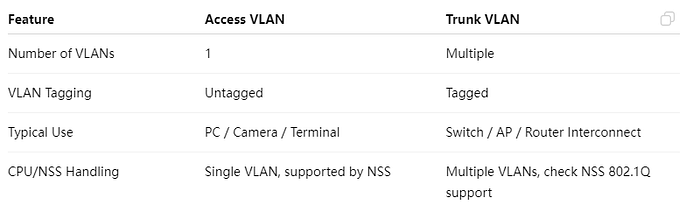
Access VS Trunk
3. Prerequisites
Wallys DR5018S router, firmware: wallys firmware
Admin access via Web GUI or SSH
VLAN ID plan and IP addressing plan
Optional: VLAN-aware NIC or Vlan Switch for testing
4. VLAN Configuration on DR5018S
Steps:
Log in to the Web GUI.
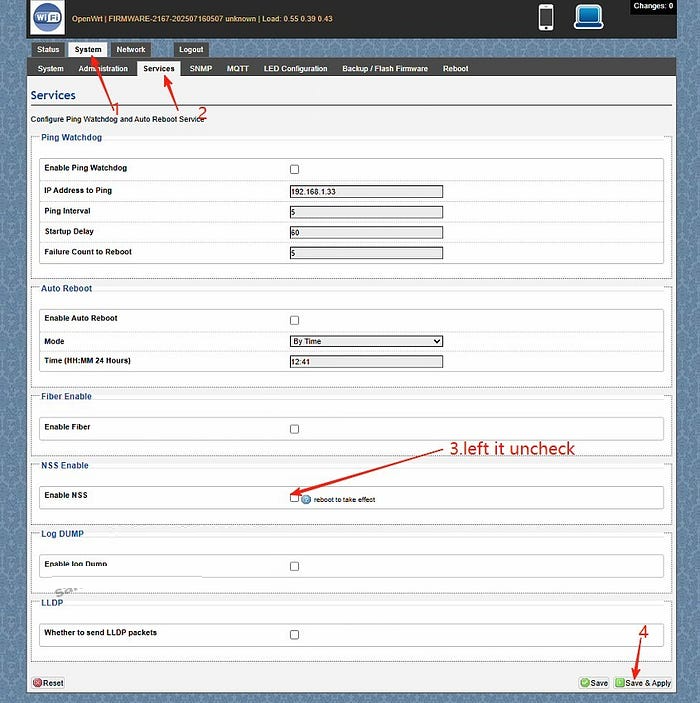
Go to System → Services. Left the Enable NSS uncheck and click “save and apply”
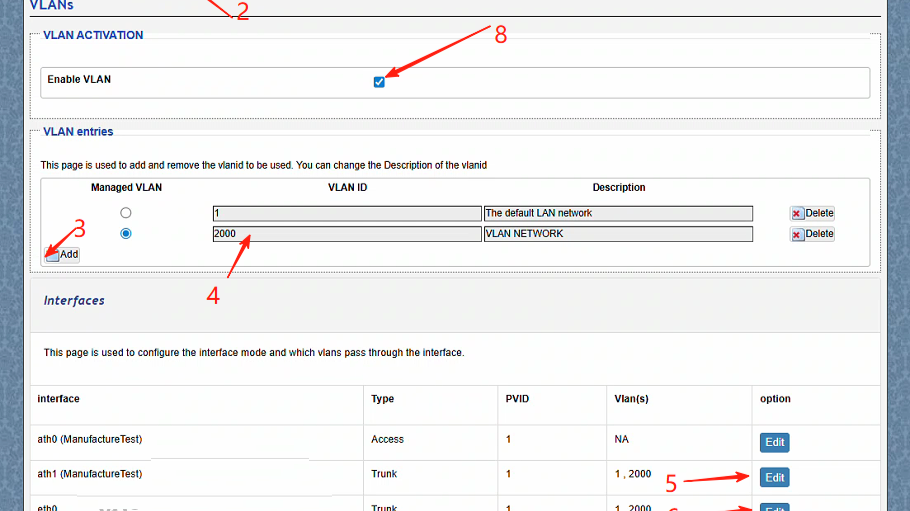
Go to Network → Vlans.Create a VLAN (e.g., VLAN 2000).
Edit the ath1(the working radio) and eth0(the ethernet port connected) port mode to Trunk.
ath1 setting:Select type Trunk,Assign the PVID as 1,select Vlans 2000,save changes
ath1 setting:Select type Trunk,Assign the PVID as 1,select Vlans 2000,save changes.
Assign an IP address to the VLAN interface (static or DHCP).
Save and apply the configuration.
Test connectivity: connect a PC to the port, get an IP, and ping the radio.
5. Troubleshooting
Cannot access the device → check VLAN ID, PVID, and tagging.
Trunk traffic lost → verify VLAN configuration on the remote end.
PC cannot ping → ensure the IP address is in the VLAN subnet.
Check NSS hardware acceleration
With this guide, you can easily configure Access VLAN and Trunk VLAN on the DR5018S router board. VLANs help isolate traffic, improve security, and optimize performance in industrial wireless networks.
For more technical support and inquiry for industrial wireless products, contact 524WiFi at info@524wifi dot com or net!
Maximizing Wireless Performance with the Qualcomm IPQ9574: A Wi-Fi 7 Powerhouse
In today’s fast-paced digital world, industries are increasingly relying on advanced wireless technologies to support high-speed data transfer and seamless connectivity. The Qualcomm IPQ9574, a cutting-edge chipset powering the DR9574 router board, is revolutionizing wireless communication by supporting Wi-Fi 7 and offering industry-leading performance for demanding applications. This article delves into the key features and specifications of the IPQ9574 and DR9574, highlighting how they are shaping the future of wireless networking.
Why the Qualcomm IPQ9574 is a Game-Changer for Wi-Fi 7 Networks
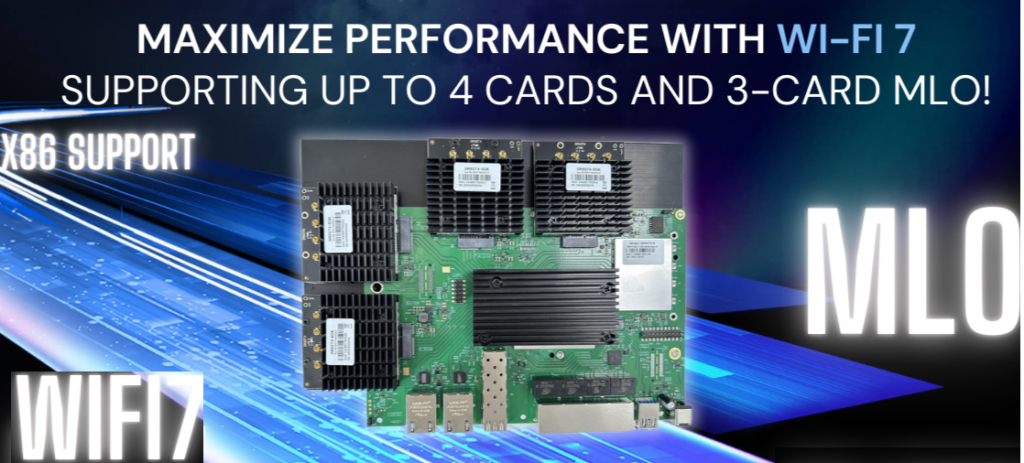
The IPQ9574 chipset is at the heart of the DR9574, delivering unmatched wireless capabilities. It supports up to 4 Wi-Fi 7 cards, allowing flexibility for a variety of MLO (Multi-Link Operation) configurations, including compatibility with any 3-card MLO setup. This level of flexibility and performance ensures that industries can scale their networks to meet the growing demand for high-speed wireless communication.
Key Features of the IPQ9574-Based DR9574
Advanced Quad-Core ARM Processor: The IPQ9574 chipset is powered by a Quad-Core ARM-A73 processor running at 2.2GHz. This ensures high-speed processing for data-intensive tasks and complex networking functions.
Support for Wi-Fi 7: The IPQ9574 is designed to support the latest Wi-Fi 7 technology, providing faster speeds, better efficiency, and higher network capacity compared to its predecessors.
Multiple M.2 E Key Interfaces: The DR9574 offers 4 M.2 E Key interfaces with PCIe 3.0, enabling support for up to four Wi-Fi 7 cards. This flexibility is crucial for environments that require high-performance networking.
Excellent Power Efficiency: The board consumes 13W without the onboard Wi-Fi and up to 23W with Wi-Fi integrated, striking a balance between power efficiency and high-performance operation.
Broad Operating Range: With operating temperatures between -20°C to 70°C and storage temperatures from -40°C to 90°C, the DR9574 is built to endure harsh industrial environments.
Optimized for High-Speed Data: The 2.4GHz band supports 802.11b/g/n/ax standards, with data rates reaching 24dBm per chain, ensuring robust and fast wireless connections.
Key Hardware Specifications of the DR9574 Router Board
Power Consumption13W (Board only), 23W (with onboard Wi-Fi)
Temperature RangeOperating: -20°C to 70°C, Storage: -40°C to 90°C
Applications of the DR9574 in Industry
With its robust feature set and Wi-Fi 7 capabilities, the DR9574 is perfect for a variety of industries, including:
Smart Cities: The ability to support multiple Wi-Fi 7 cards and MLO configurations makes it ideal for managing the wireless backbone of smart cities, where high-speed and reliable communication are essential.
Industrial IoT (IIoT): As industrial applications increasingly rely on wireless technology for device communication, the DR9574 ensures reliable data transfer, low latency, and the ability to scale as the number of connected devices grows.
Telecommunications: The IPQ9574 chipset allows telecommunications providers to build next-generation infrastructures that offer superior performance and capacity.
Absolute Maximum Ratings for Reliable Operation
Parameter/RatingUnit
Operating Temperature-20 ~ 70ºC
Storage Temperature-40 ~ 90ºC
Operating Humidity5% ~ 95 (non-condensing)%
Storage Humidity0% ~ 90 (non-condensing)%
Conclusion: Future-Proof Your Network with IPQ9574 and DR9574
The Qualcomm IPQ9574 and DR9574 router board are poised to lead the charge in Wi-Fi 7 technology, providing businesses and industries with the high-performance, reliable, and scalable networking solutions they need. With support for multiple Wi-Fi 7 cards, MLO configurations, and the ability to operate in challenging environments, the DR9574 is an ideal choice for industries looking to upgrade their wireless networks for the future.
As Wi-Fi 7 continues to gain traction in the industry, the IPQ9574 is at the forefront of delivering the connectivity that next-gen applications demand, from industrial IoT to smart cities and beyond.
Your Go-To Guide for Loading Firmware and Configuring MLO on IPQ9574 !
Hey there! Are you feeling a bit lost when it comes to loading firmware and configuring MLO on the IPQ9574? Fret not! Here at 524WiFi, we’ve crafted a super easy and detailed tutorial just for you. Let’s jump right into it!
Why This Guide?
Whether you’re a seasoned pro or a complete newbie, setting up advanced hardware can be daunting. That’s why we’re here to break it down into simple, manageable steps. By the end of this guide, you’ll be a pro at loading firmware and configuring your device like a champ!
What You’ll Get
Clear Hardware Setup: We’ll kick things off by connecting the hardware. Don’t worry; we’ll guide you through the process of connecting your UART cable without any hassle.
Seamless Firmware Loading: Next, we’ll tackle loading the firmware. We’ll ensure you have everything in the right place and give you step-by-step instructions to make it a breeze.
Effortless AP Configuration: Finally, we’ll walk you through configuring the Access Point. This step is crucial for ensuring your device runs at its best.
Stick Around for More!
But wait, there’s more! If you stick around until the end of the video, you’ll get an exclusive sneak peek at our upcoming DR9574kit throughput test. Trust us, you won’t want to miss it!
Ready to Dive In?
So, what are you waiting for? Click the link below to watch our tutorial and empower yourself with the skills to conquer firmware loading and MLO configuration!
📺 Watch here:
P.S.: The MLO for DR5332/DR5322 is currently in active preparation. We appreciate your patience as our R&D team works diligently on this. Stay tuned for the latest updates coming your way soon—just you wait!
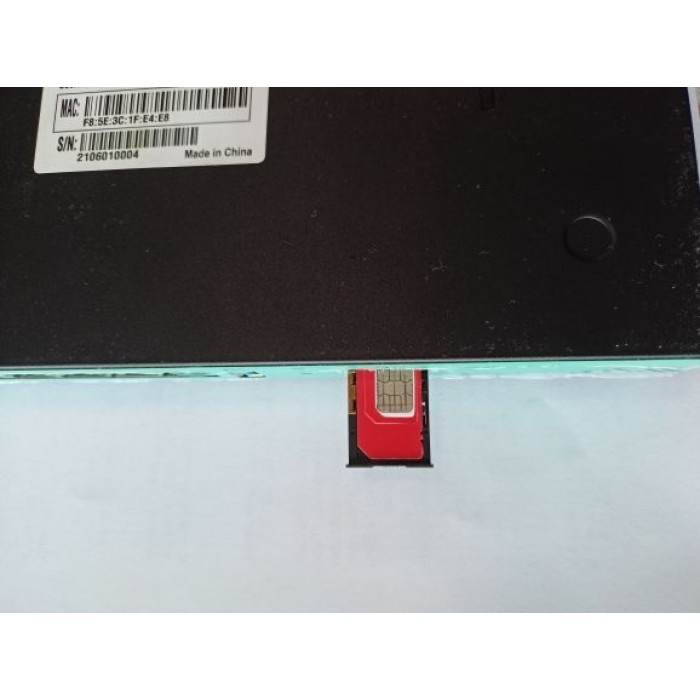
Put a functional SIM card into the SIM slot (please see picture bellow).
Please bear in mind that there are 2 types of antennas: LTE and WiFi. Be sure that you’re putting in the right antenna to the right slot, You can recognize them by female and male connectors.
After ensuring that everything is in the right place, please first connect your LANport then the routers DC interface, please use 12V / 2A power adapter.
Now type into your browsers URL query “192.168.1.1” it’ll take you to the routers firmware
Passwords are: Viper firmware “Password1234” or “admin” for OpenWRT
WiFi default password: Viper firmware “LakeWater561” , in OpenWRT firmware is WiFi without encryption by default.
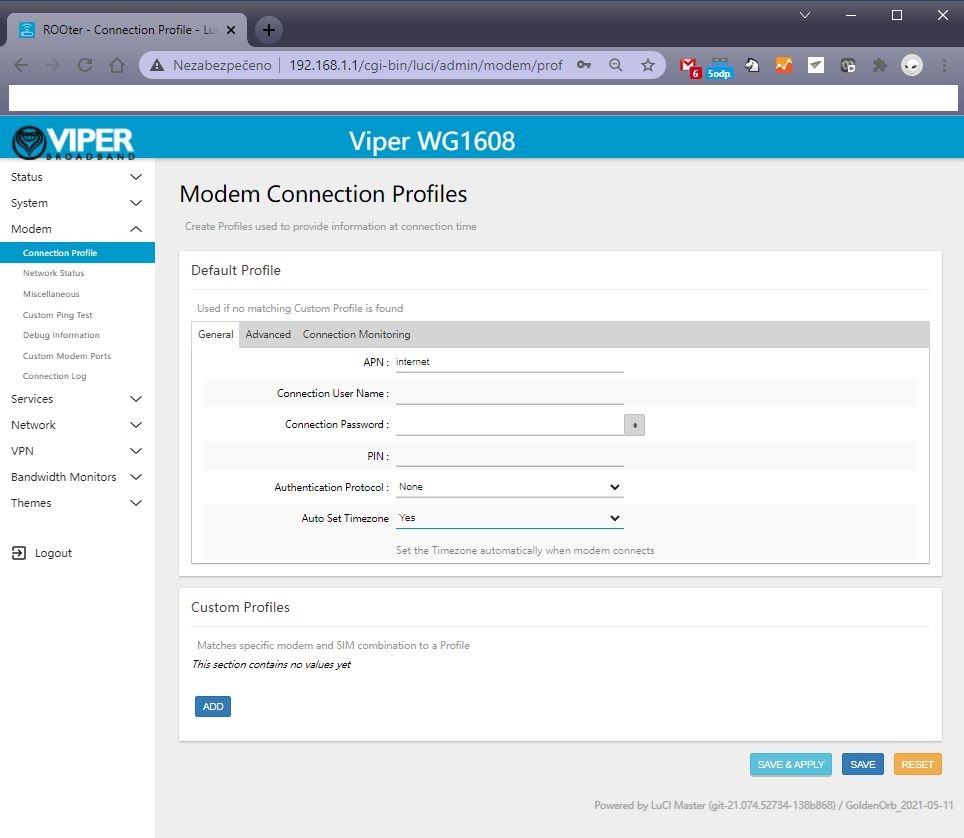
After getting inside your firmware please go to “Modem > Connection profile” and set your APN to “internet” or other APN from your provider and wait at least 5 minutes.
A few of the more common carrier APNs are listed below:
Don’t forget to check “Modem > Network Status” to see if your router recognizes:
Your SIM card
Your modem
Strength of your signal
If you see every mentioned option in No. 6 then congratulations!!! Your router is ready to be deployed. We hope that this user manual was helpful. We’re trying to keep it as simple as humanly possible.
We set customers own specific settings as long as they’re mentioned in the order note.
If you have any more questions, please be sure to contact us at [email protected].
ADVANCED SECTION
QUECTEL RM520N-GL, RM502Q AND OTHER QUECTEL MODULE SETUP IN OPENWRT FIRMARE :
1 – go to the Network – Interfaces – 4G menu and check the 4G/5G module button , then you can set the APN
2 – Then save and reboot and you can see 4G/5G connected in Status page :
Please insert your 4G or 5G LTE card in “M.2 LTE card slot”
Connect your pigtails to your LTE card and your WiFi card (If there’s a right slot for it marked with “WiFi” text)
A) is the correct way.
B) This one isn’t as this may result in damaging contact between the LTE card and antenna.