
Posted on

Do you need to use an eSIM in Linux systems?

You probably know how traditional SIM cards works, but do you know how to use an eSIM in Linux ? And how well does eSIM work in a Linux environment?

Good news is that it’s possible to get a module with an eSIM up and running on your machine with a bit of configuration. So after this confusing title, we will be using an eUICC SGP.22 SIM – “consumer eSIM” and Host computer (x86_64 running Ubuntu 24.04) with Cellular module (SIMCom SIM8230G-M2 or SIM8262E M2 for example)

Step 1:

Make sure you have the correct drivers installed for your module. We see here that the module exposes a QMI interfaces which we bind to qmi_wwan and 3 serial ports bound to option.

APL01:~$ lsusb -t
/:  Bus 001.Port 001: Dev 001, Class=root_hub, Driver=xhci_hcd/8p, 480M
    |__ Port 004: Dev 013, If 0, Class=Vendor Specific Class, Driver=option, 480M
    |__ Port 004: Dev 013, If 1, Class=Vendor Specific Class, Driver=option, 480M
    |__ Port 004: Dev 013, If 2, Class=Vendor Specific Class, Driver=option, 480M
    |__ Port 004: Dev 013, If 3, Class=Vendor Specific Class, Driver=qmi_wwan, 480M
/:  Bus 002.Port 001: Dev 001, Class=root_hub, Driver=xhci_hcd/7p, 5000M

Step 2:

In order to use QMI, install libqmi 1.35.5 or later.
First we need some dependencies: meson ninja-build pkg-config bash-completion libgirepository1.0-dev help2man libglib2.0-dev libgudev-1.0-dev libmbim-glib-dev libqrtr-glib-dev
In our case, these packages were already installed.

APL01:~$ sudo apt-get install -y meson ninja-build git pkg-config bash-completion libgirepository1.0-dev help2man libglib2.0-dev libgudev-1.0-dev libmbim-glib-dev libqrtr-glib-dev
[sudo] password for jakob:
Reading package lists... Done
Building dependency tree... Done
Reading state information... Done
meson is already the newest version (1.3.2-1ubuntu1).
ninja-build is already the newest version (1.11.1-2).
ninja-build set to manually installed.
pkg-config is already the newest version (1.8.1-2build1).
bash-completion is already the newest version (1:2.11-8).
bash-completion set to manually installed.
libgirepository1.0-dev is already the newest version (1.80.1-1).
help2man is already the newest version (1.49.3).
libglib2.0-dev is already the newest version (2.80.0-6ubuntu3.2).
libgudev-1.0-dev is already the newest version (1:238-5ubuntu1).
libmbim-glib-dev is already the newest version (1.31.2-0ubuntu3).
libqrtr-glib-dev is already the newest version (1.2.2-1ubuntu4).
0 upgraded, 0 newly installed, 0 to remove and 146 not upgraded.

Step 3:

Download libqmi, build and install it.
Git directory: https://gitlab.freedesktop.org/mobile-broadband/libqmi.git
meson setup build –prefix=/usr –buildtype=release
ninja -j$(nproc) -C build
sudo ninja -C build install

APL01:~$ git clone https://gitlab.freedesktop.org/mobile-broadband/libqmi.git
Cloning into 'libqmi'...
remote: Enumerating objects: 17636, done.
remote: Counting objects: 100% (1308/1308), done.
remote: Compressing objects: 100% (380/380), done.
remote: Total 17636 (delta 889), reused 1300 (delta 882), pack-reused 16328 (from 1)
Receiving objects: 100% (17636/17636), 4.97 MiB | 6.57 MiB/s, done.
Resolving deltas: 100% (13472/13472), done.

APL01:~$ cd libqmi
APL01:~/libqmi$ meson setup build --prefix=/usr --buildtype=release
The Meson build system
Version: 1.3.2
Source dir: /home/jakob/libqmi
Build dir: /home/jakob/libqmi/build
Build type: native build
Project name: libqmi
Project version: 1.35.6
...

APL01:~/libqmi$ ninja -j$(nproc) -C build
ninja: Entering directory `build'
[176/176] Generating src/libqmi-glib/Qmi-1.0.typelib with a custom command

APL01:~/libqmi$ sudo ninja -C build install
ninja: Entering directory `build'
[0/1] Installing files.
Installing src/libqmi-glib/generated/qmi-error-types.h to /usr/include/libqmi-glib
Installing src/libqmi-glib/generated/qmi-enum-types.h to /usr/include/libqmi-glib
Installing src/libqmi-glib/generated/qmi-flag-types.h to /usr/include/libqmi-glib
Installing src/libqmi-glib/generated/qmi-flags64-types.h to /usr/include/libqmi-glib
Installing src/libqmi-glib/generated/qmi-atr.h to /usr/include/libqmi-glib
Installing src/libqmi-glib/generated/qmi-dms.h to /usr/include/libqmi-glib
Installing src/libqmi-glib/generated/qmi-dpm.h to /usr/include/libqmi-glib
Installing src/libqmi-glib/generated/qmi-dsd.h to /usr/include/libqmi-glib
Installing src/libqmi-glib/generated/qmi-ims.h to /usr/include/libqmi-glib
Installing src/libqmi-glib/generated/qmi-imsa.h to /usr/include/libqmi-glib
...
...

APL01:~/libqmi$ qmicli --version
qmicli 1.35.6
Copyright (C) 2012-2023 Aleksander Morgado
License GPLv2+: GNU GPL version 2 or later <http://gnu.org/licenses/gpl-2.0.html>
This is free software: you are free to change and redistribute it.
There is NO WARRANTY, to the extent permitted by law.

Step 4:

Lpac requires some additional dependencies: build-essential libpcsclite-dev libcurl4-openssl-dev zip
Download lpac via git
Git directory: https://github.com/estkme-group/lpac.git
We use QMI as noted, so we will enable the QMI flag.
Make and install.

APL01:~/lpac$ sudo apt-get install -y build-essential libpcsclite-dev libcurl4-openssl-dev zip
Reading package lists... Done
Building dependency tree... Done
Reading state information... Done
...
...

APL01:~$ git clone https://github.com/estkme-group/lpac.git
Cloning into 'lpac'...
remote: Enumerating objects: 2865, done.
remote: Counting objects: 100% (647/647), done.
remote: Compressing objects: 100% (256/256), done.
remote: Total 2865 (delta 540), reused 399 (delta 389), pack-reused 2218 (from 3)
Receiving objects: 100% (2865/2865), 1.04 MiB | 4.17 MiB/s, done.
Resolving deltas: 100% (1922/1922), done.

APL01:~/lpac$ git checkout tags/v2.3.0
Note: switching to 'tags/v2.3.0'.
...
HEAD is now at c2fcf5e chore: bump version to 2.3.0

jakob@jakob-UP-APL01:~/lpac$ cmake -B lpacoutput -DLPAC_WITH_APDU_QMI=ON
-- The C compiler identification is GNU 13.3.0
-- Detecting C compiler ABI info
-- Detecting C compiler ABI info - done
-- Check for working C compiler: /usr/bin/cc - skipped
-- Detecting C compile features
-- Detecting C compile features - done
-- Found PkgConfig: /usr/bin/pkg-config (found version "1.8.1")
-- Checking for module 'libpcsclite'
--   Found libpcsclite, version 2.0.3
-- Found PCSCLite: /usr/lib/x86_64-linux-gnu/libpcsclite.so
-- Checking for module 'qmi-glib'
--   Found qmi-glib, version 1.35.6
-- Found CURL: /usr/lib/x86_64-linux-gnu/libcurl.so (found version "8.5.0")
-- Found Git: /usr/bin/git (found version "2.43.0")
-- Configuring done (2.1s)
-- Generating done (0.0s)
-- Build files have been written to: /home/jakob/lpac/lpacoutput

APL01:~/lpac$ cmake --build lpacoutput
[  1%] Building C object cjson/CMakeFiles/cjson-static.dir/cJSON.c.o
[  3%] Building C object cjson/CMakeFiles/cjson-static.dir/cJSON_ex.c.o
[  5%] Linking C static library libcjson-static.a
[  5%] Built target cjson-static
[  7%] Building C object euicc/CMakeFiles/euicc.dir/base64.c.o
...
[ 98%] Building C object src/CMakeFiles/lpac.dir/applet/profile/nickname.c.o
[100%] Linking C executable ../lpacoutput/lpac
[100%] Built target lpac

APL01:~/lpac$ sudo cmake --install lpacoutput
-- Install configuration: ""
-- Installing: /usr/local/bin/lpac
-- Set non-toolchain portion of runtime path of "/usr/local/bin/lpac" to "/usr/local/lib/lpac"

Step 5:

Export qmi function and qmi_device for lpac to use the correct driver.

APL01:~$ export LPAC_APDU=qmi
APL01:~$ export LPAC_APDU_QMI_DEVICE=/dev/cdc-wdm0

Step 6:

Use lpac to gather chip information and handle the eSIM itself.
We pipe the command with jq to get it more readable.
Chip info.
This displays the information of the eUICC you are using with your device.

APL01:~/drivertest/qmi_wwan$ sudo -E lpac chip info | jq .
{
  "type": "lpa",
  "payload": {
    "code": 0,
    "message": "success",
    "data": {
      "eidValue": "8XXXXXXXXXXXXXXXXXXXXXXXXXXXXXX0",
      "EuiccConfiguredAddresses": {
        "defaultDpAddress": "smdp-plus-1.eu.cd.rsp.kigen.com",
        "rootDsAddress": "lpa.ds.gsma.com"
      },
      "EUICCInfo2": {
        "profileVersion": "2.3.1",
        "svn": "2.3.0",
        "euiccFirmwareVer": "36.16.23",
        "extCardResource": {
          "installedApplication": 6,
          "freeNonVolatileMemory": 213008,
          "freeVolatileMemory": 9058
        },
        "uiccCapability": [
          "usimSupport",
          "isimSupport",
          "csimSupport",
          "akaMilenage",
          "akaCave",
          "akaTuak128",
          "akaTuak256",
          "gbaAuthenUsim",
          "gbaAuthenISim",
          "eapClient",
          "javacard",
          "multipleUsimSupport",
          "multipleIsimSupport",
          "multipleCsimSupport"
        ],
        "ts102241Version": "15.1.0",
        "globalplatformVersion": "2.3.0",
        "rspCapability": [
          "additionalProfile",
          "testProfileSupport"
        ],
        "euiccCiPKIdListForVerification": [
          "8XXXXXXXXXXXXXXXXXXXXXXXXXXXXXXXXXXXXXb"
        ],
        "euiccCiPKIdListForSigning": [
          "8XXXXXXXXXXXXXXXXXXXXXXXXXXXXXXXXXXXXXb"
        ],
        "euiccCategory": null,
        "forbiddenProfilePolicyRules": [
          "ppr1"
        ],
        "ppVersion": "1.0.0",
        "sasAcreditationNumber": "KN-XX-XX-XXXX",
        "certificationDataObject": {
          "platformLabel": null,
          "discoveryBaseURL": null
        }
      },
      "rulesAuthorisationTable": [
        {
          "pprIds": [
            "ppr1",
            "ppr2"
          ],
          "allowedOperators": [
            {
              "plmn": "eeeeee",
              "gid1": null,
              "gid2": null
            }
          ],
          "pprFlags": [
            "consentRequired"
          ]
        }
      ]
    }
  }
}

Profile list

This shows all profiles in your eUICC.

APL01:~$ sudo -E lpac profile list | jq .
{
  "type": "lpa",
  "payload": {
    "code": 0,
    "message": "success",
    "data": [
      {
        "iccid": "8944476500000515770",
        "isdpAid": "a0000005591010ffffffff8900001100",
        "profileState": "disabled",
        "profileNickname": "test",
        "serviceProviderName": "BetterRoaming",
        "profileName": "BetterRoaming",
        "iconType": null,
        "icon": null,
        "profileClass": "operational"
      },
      {
        "iccid": "8944476500000932264",
        "isdpAid": "a0000005591010ffffffff8900001300",
        "profileState": "disabled",
        "profileNickname": null,
        "serviceProviderName": "BetterRoaming",
        "profileName": "BetterRoaming",
        "iconType": null,
        "icon": null,
        "profileClass": "operational"
      }
    ]
  }
}

Profile download

This downloads a profile to your eUICC.

APL01:~$ sudo -E lpac profile download -a 'LPA:1$rsp.truphone.com$QRF-SPEEDTEST'
{"type":"progress","payload":{"code":0,"message":"es10b_get_euicc_challenge_and_info","data":"rsp.truphone.com"}}
{"type":"progress","payload":{"code":0,"message":"es9p_initiate_authentication","data":"rsp.truphone.com"}}
{"type":"progress","payload":{"code":0,"message":"es10b_authenticate_server","data":"rsp.truphone.com"}}
{"type":"progress","payload":{"code":0,"message":"es9p_authenticate_client","data":"rsp.truphone.com"}}
{"type":"progress","payload":{"code":0,"message":"es8p_meatadata_parse","data":{"iccid":"8944476500001126791","serviceProviderName":"Speedtest Travel","profileName":"BetterRoaming","iconType":null,"icon":null,"profileClass":null}}}
{"type":"progress","payload":{"code":0,"message":"es10b_prepare_download","data":"rsp.truphone.com"}}
{"type":"progress","payload":{"code":0,"message":"es9p_get_bound_profile_package","data":"rsp.truphone.com"}}
{"type":"progress","payload":{"code":0,"message":"es10b_load_bound_profile_package","data":"rsp.truphone.com"}}
{"type":"lpa","payload":{"code":0,"message":"success","data":null}}

Profile list

Here we can see that our profile we just downloaded is available on the SIM.

APL01:~$ sudo -E lpac profile list | jq .
{
  "type": "lpa",
  "payload": {
    "code": 0,
    "message": "success",
    "data": [
      {
        "iccid": "8944476500000515770",
        "isdpAid": "a0000005591010ffffffff8900001100",
        "profileState": "disabled",
        "profileNickname": "test",
        "serviceProviderName": "BetterRoaming",
        "profileName": "BetterRoaming",
        "iconType": null,
        "icon": null,
        "profileClass": "operational"
      },
      {
        "iccid": "8944476500000932264",
        "isdpAid": "a0000005591010ffffffff8900001300",
        "profileState": "disabled",
        "profileNickname": null,
        "serviceProviderName": "BetterRoaming",
        "profileName": "BetterRoaming",
        "iconType": null,
        "icon": null,
        "profileClass": "operational"
      },
      {
        "iccid": "8944476500001126791",
        "isdpAid": "a0000005591010ffffffff8900001400",
        "profileState": "disabled",
        "profileNickname": null,
        "serviceProviderName": "Speedtest Travel",
        "profileName": "BetterRoaming",
        "iconType": null,
        "icon": null,
        "profileClass": "operational"
      }
    ]
  }
}

Enable profile

In order to enable a profile, you enable it with it’s corresponding ICCID, making sure you get a success message.

APL01:~$ sudo -E lpac profile enable 89357XXXXXXXXXXXXX
{"type":"lpa","payload":{"code":0,"message":"success","data":null}}

Process notification

Make sure the SM-DP+ server knows the profile is downloaded, installed and enabled correctly.
After successfully processed, you can delete old notifications.

APL01:~$ sudo -E lpac notification process -a
{"type":"progress","payload":{"code":0,"message":"es10b_list_notification","data":null}}
{"type":"progress","payload":{"code":0,"message":"es10b_retrieve_notifications_list","data":"77"}}
{"type":"progress","payload":{"code":0,"message":"es9p_handle_notification","data":"77"}}
{"type":"progress","payload":{"code":0,"message":"es10b_retrieve_notifications_list","data":"78"}}
{"type":"progress","payload":{"code":0,"message":"es9p_handle_notification","data":"78"}}
{"type":"progress","payload":{"code":0,"message":"es10b_retrieve_notifications_list","data":"79"}}
{"type":"progress","payload":{"code":0,"message":"es9p_handle_notification","data":"79"}}
{"type":"lpa","payload":{"code":0,"message":"success","data":null}}

IMPORTANT

If you disable and delete a profile, it is important that you process the notifications to make sure the SM-DP+ server knows you have handed the profile back.

Posted on

SIMCom 5G R16 module SIM8262E-M2 has received a wide range of international certifications, including CE (RED), RoHS, REACH, JATE, TELEC, GCF, ANATEL, and Deutsche Telekom approval

SIMCom’s 5G R16 Module SIM8262E-M2 Earns Global Certifications, Accelerating 5G Device Deployment Worldwide

SIMCom, a global leader in IoT communication solutions, is proud to announce that its 5G R16 module SIM8262E-M2 has received a wide range of international certifications, including CE (RED), RoHS, REACH, JATE, TELEC, GCF, ANATEL, and Deutsche Telekom approval. These certifications reinforce SIMCom’s commitment to global market and accelerate the adoption of 3GPP Release 16 5G devices across the world.

Based on the Qualcomm Snapdragon X62 platform, the SIM8262E-M2 supports Sub-6GHz TDD/FDD and WCDMA, delivering enhanced data throughput and broader network coverage. Engineered for performance, flexibility, and scalability, the module is well-suited for a variety of IoT scenarios—including CPE, MIFI, industrial IoT, connected vehicles, and more.

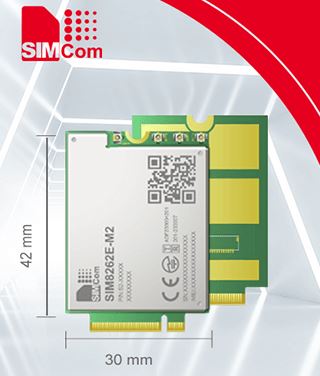
The SIM8262E-M2 features a compact M.2 form factor (30.0 × 42.0 × 2.3mm), aligned with industry interface standards. With support for USB 3.1, PCIe, and GPIO, it simplifies system design and integration, helping developers reduce time-to-market.

With major global certifications secured, the SIM8262E-M2 is already enabling large-scale 5G rollouts and helping partners around the world unlock new opportunities in next-generation IoT. As SIMCom continues to expand its 5G product portfolio, it remains committed to delivering certified, market-ready solutions that drive the global digital transformation.

Posted on

5GNR modem real working power consumption and temperature measurement

And the winner is …. SIMCom SIM8262E 5G modem!  Please read bellow and compare 

LTE modem SIMCom SIM8262E (5G modem)

cooling : none

connection : USB A -> mPCIe converter + mPCIe -> m.2 adapter (USB 3.0) 

Consumption :

o idle (4G): 0.3-0.5, at ping (5G) jumps up to 1.3 W
o flood ping (5G): 1.2-1.9 W (mostly ~1.6 W)
o speedtest (5G): varies widely 2.1W-4.5 W, speeds vary from about 10 Mbps

Temperature :

o  idle: ~39 ˚C
o  flood ping: ~62 ˚C
o  speedtest: ~83 ˚C

LTE modem Telit LM940

cooling : none

connection : modem plugged in USB to mPCIe converter

transmissions: alternately approx. 90 Mbps download and 30 Mbps upload

Consumption : 
– when actively transmitting 2.2-3 W
– aggregation 2100 MHz/20 Mhz + 1800 MHz/20 MHz and 800 MHz/10 MHz
– when uploading about 0,5 W higher
–  during simultaneous upload and download consumption at the level of separate download
– during flood pinging the modem runs only on 2100 MHz, the remaining aggregated bands are inactive –  consumption ~1 W
–  when inactive consumption fluctuates between 0.3 W and 1 W
– AT commands  –  once every 30 s check ping

Temperature :
– settled to 38 ˚C when inactive
– climbed to 73 ˚C when active

LTE modem Telit LM920

cooling : none

connection : USB A -> mPCIe converter + mPCIe -> m.2 adapter (USB 3.0)

transmissions: alternately approx. 70 Mbps download and 30 Mbps upload

Consumption : 

+  at rest (no explicit load, only MMngr) varies between 0.25 W and 1 W
     ▪        at worse signal (without antennas) higher on average by about 0.3 W, (0.25-1,3 W)
+  flood ping ~0.75 W (2100 MHz/20 MHz) (very stable, repeatedly measured)
     ▪      flood ping + speedtest as flood ping alone
+   speedtest in loop: fluctuates between 1.5 W and 2.5 W
       ▪     when uploading ~0.5 W higher (1.5-2 W/2-2.5 W)
       ▪      band aggregation • 2100/20 MHz •  1800/20 MHz • 800/10 MHz

Temperature :

 –  flood ping ~46 ˚C
 –  without explicit load ~36 ˚C
 –  speedtest ~68 ˚C

Cinterion MV32-W (5G modem)

cooling : none

connection : modem plugged in USB to mPCIe converter

transmissions: 5G avg. 130/50 Mbps

                        LTE avg 145/60 Mbps

                        after some time it disconnects from the mains (thermal fuse?)

Consumption : 

o  FW: FDE.F0.0.0.1.3.DT.004.046
o   connection: reducer USB-A -> mPCIe + mPCIe -> m.2
o consumption (increases noticeably with modem temperature):
o  AT+CFUN=0: <0,5 W
o idle connected: 0,5 W
o 5G
▪  flood ping: 2–2,2 W
▪ speedtest: 3–3,5 W/3,5–4,5 W (Down/Up)
o LTE mode
 – flood ping: 1,3–1,5 W
 – speedtest: 2,2–3 W / 3–6 W (Down/Up)

Temperature :

o  AT+CFUN=0: 38 ˚C
o  idle connected: 38 ˚C
o  flood ping (5G): 70 ˚C
o  flood ping (4G): 56 ˚C
o  speedtest (5G): 85+ ˚C (connection lost)
o  speedtest (4G): 85+ ˚C (connection lost)