Welcome back to 524WiFi! In today’s video, we’ll walk you through the process of loading firmware and configuring MLO for the IPQ9574 board.
If you’re setting up advanced hardware, this guide will help you get everything up and running smoothly. Let’s dive in! First, we’ll connect the hardware.
You’ll need a UART cable, and here’s how to connect the pins:
GND connects to the black cable, TX to the white cable, RX to the green cable. Remember, VCC is not needed.
Once that’s connected, we can move on to the software configuration.
Next, we’ll load the firmware. Make sure the firmware file is in the same folder as tftpd32. Follow these steps:
Open the terminal and enter U-Boot mode. Modify the machid and configure the card slots.
If you’re using the DR9274-2G, DR9274-5G, and DR9274-6G modules, input the following commands: Open the tftpd32 tool and input the following command to re-flash the firmware:
Finally, input reset to reboot the system and proceed with AP configuration.
Now, we’ll configure the Access Points (AP). After the reboot, log in as root with the password asdf1234. Then, input the following command to edit the wireless configuration file: Modify the AP settings as needed.
Here’s an example configuration: Once done, press ESC, then shift+zz to save and exit.
To finalize the setup, enable the configuration by typing:wifi
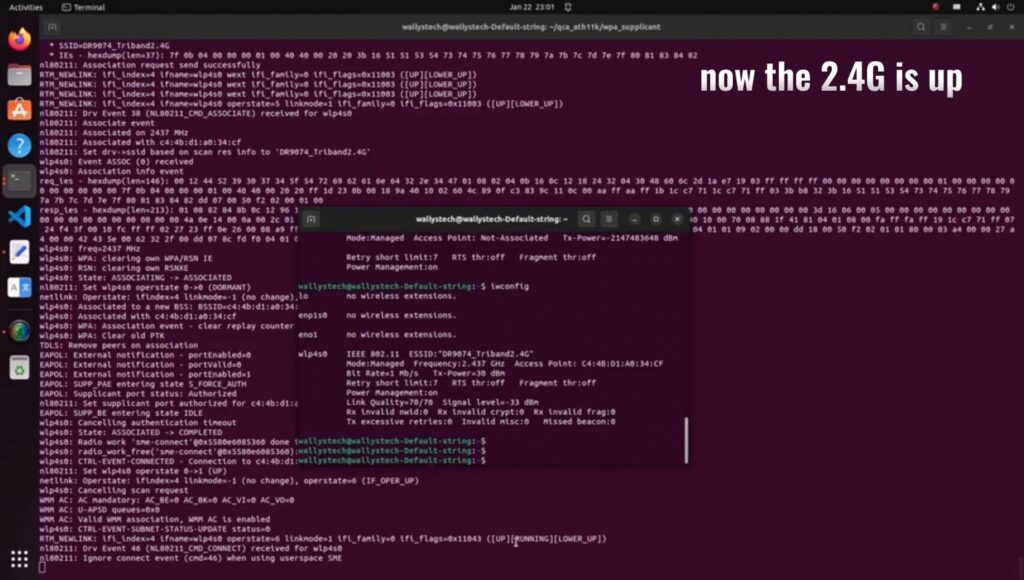
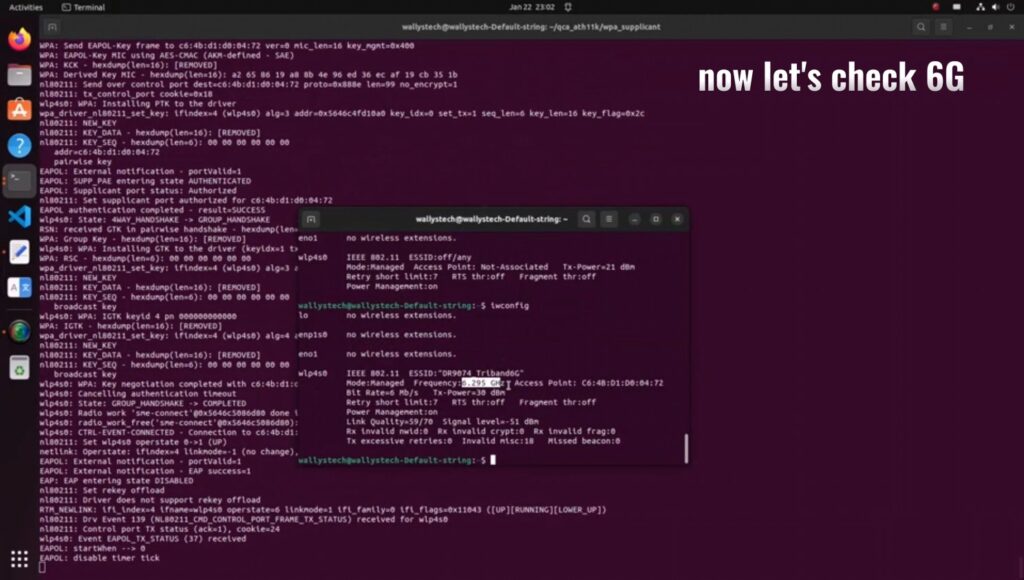
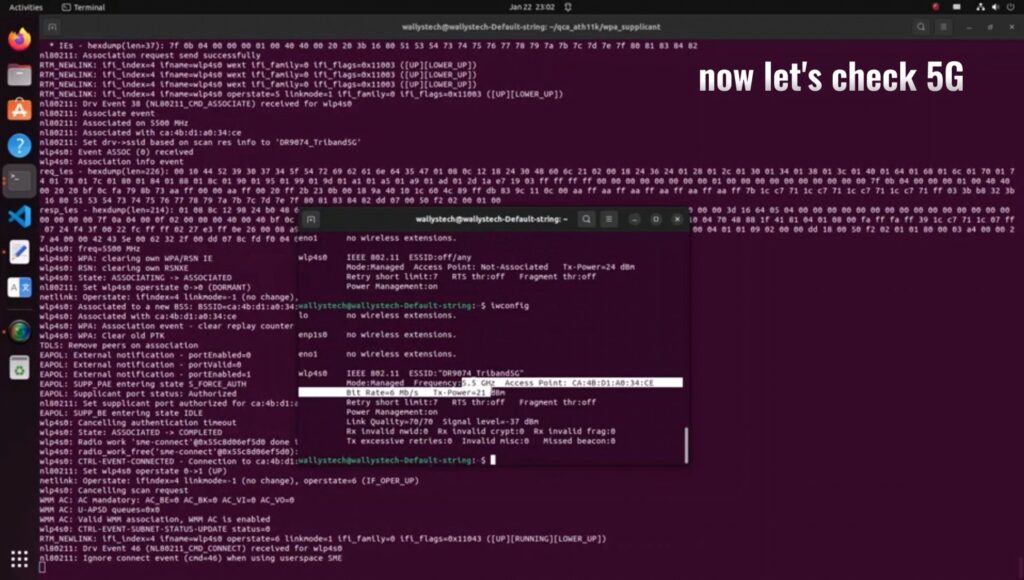
Then, check if the radios are up by entering:iwconfig
And that’s it! Your APs are configured, and the new firmware has been successfully loaded! Next, we’ll be testing the DR9574kit’s MLO throughput performance. Stay tuned to our channel for the latest updates and test results. Don’t forget to hit the notification bell, so you don’t miss out! Thank you for watching this firmware loading and MLO configuration tutorial! If you found this video helpful, make sure to give us a thumbs up and subscribe to Wallystech for more technical guides and hardware tutorials. See you in the next video!
Please see our reference guide how to run QCN 9024 / 9074 DR9074-Triband module with our ath11k driver on Rockship board .
The driver is sensitive to the hardware, so we refer you to use the Rockchip board to try these driver. If you have a bigger project, then lets discuss on the driver issues or send us the hardware description and we would help you to develope the ath11k driver for your application.
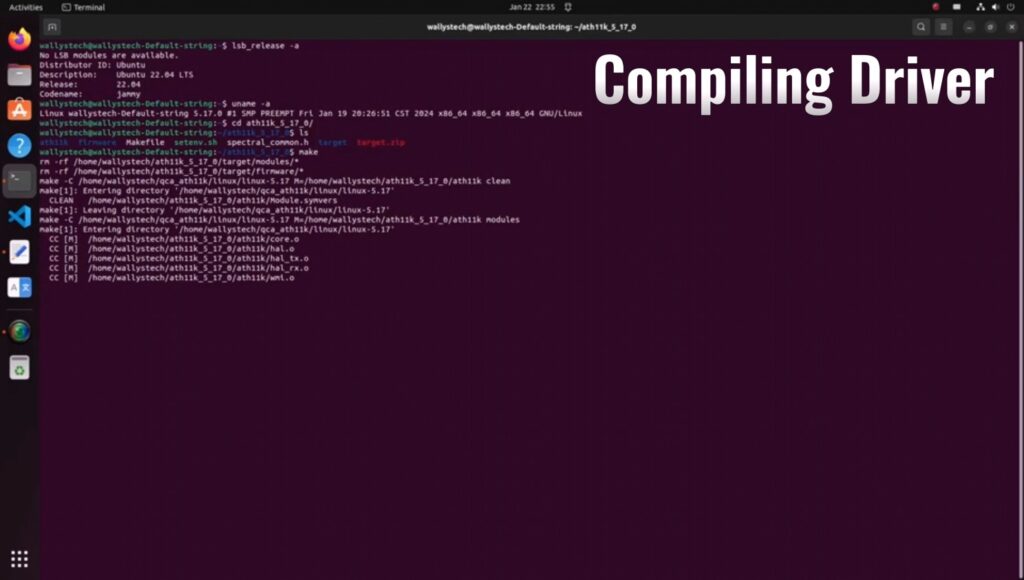
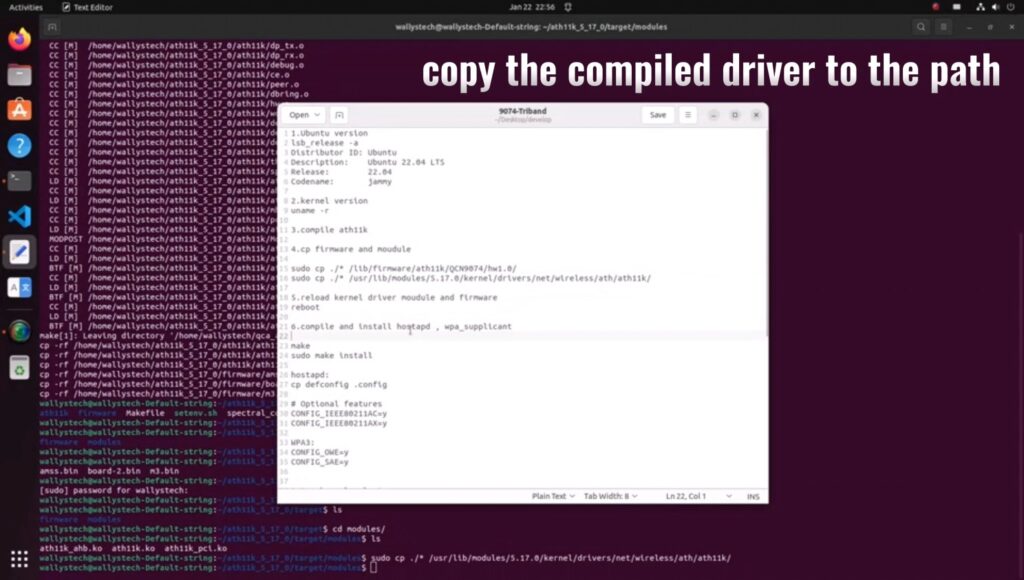
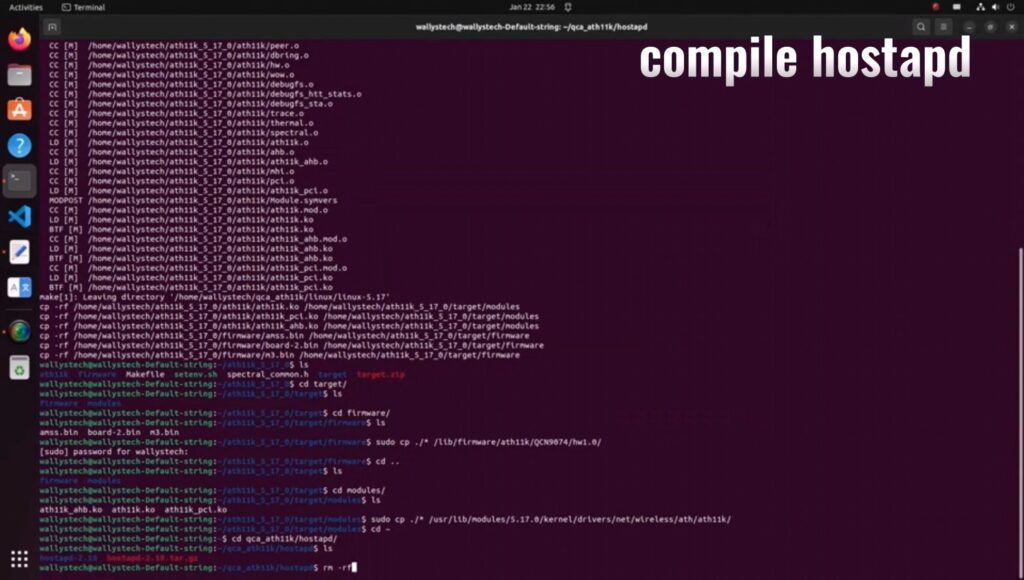
in the compiled environment. This directory may not be available in the newly downloaded environment. You can compile the kernel to obtain this directory.
Compile the kernel so you can get a new kernel deb with ath11k_pci.
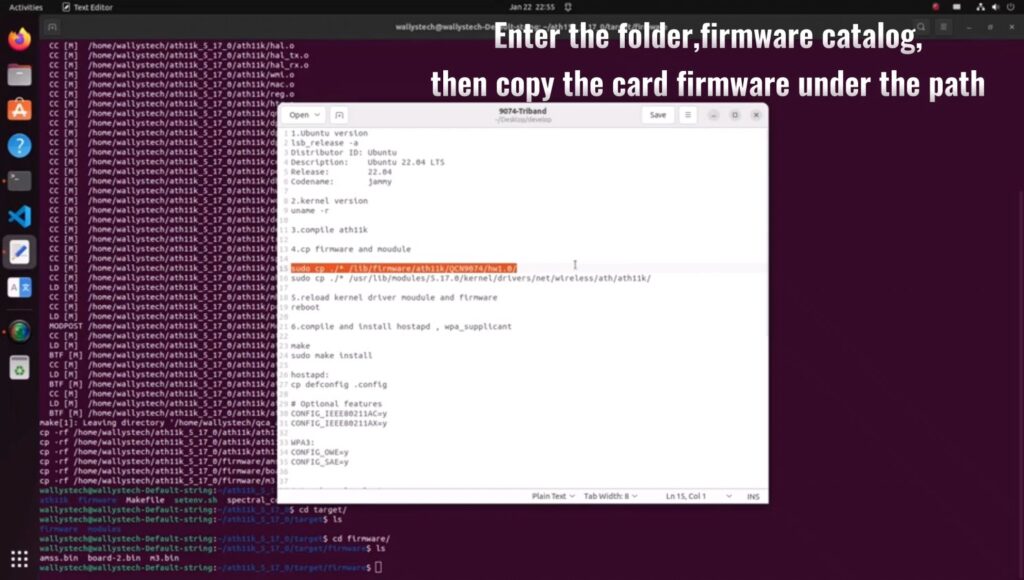
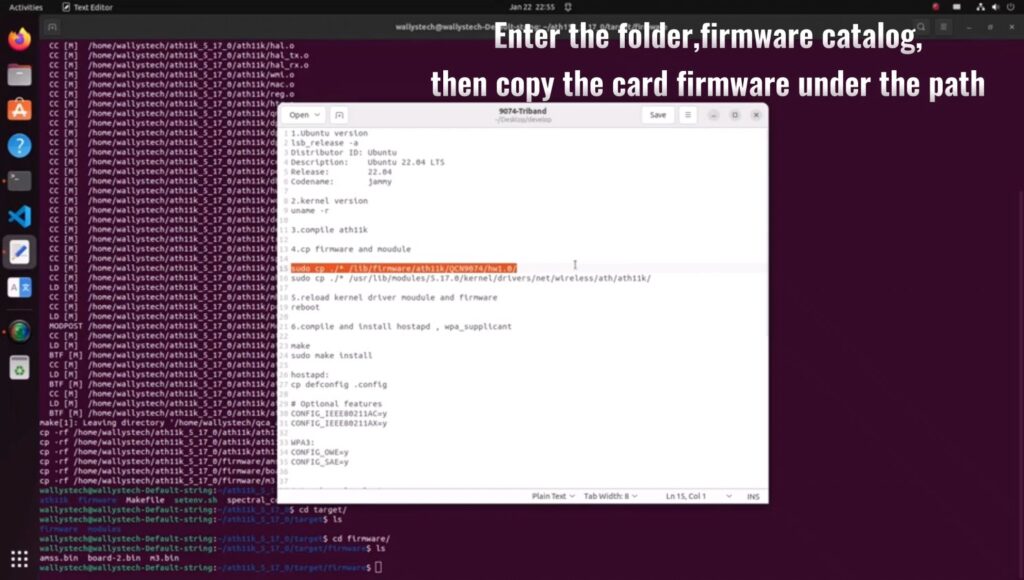
Secondly, the correct firmware of the WiFi card is also required to activate it, you can move our firmware (amss.bin, board-2.bin) to:
/lib/firmware/ath11k/QCN9074/hw1.0
and delete the amss.bin.zst and board-2.bin.zst from the directory.
Setup wireless on ubuntu
Download hostapd
you can download hostapd by use command:
sudo apt-get install hostapd
Use hostapd to create a wireless access point
First, you should turn off ubuntu’s wifi tool by this command:
sudo nmcli radio wifi off
it will block you wifi function unblock wifi by use this command:
sudo rfkill unblock wifi
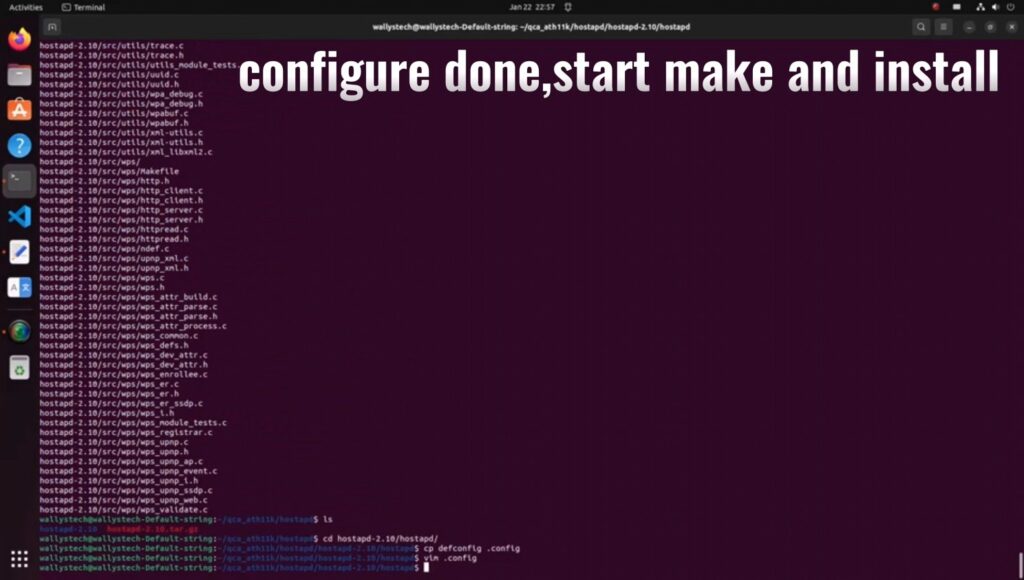
You can setup an access point by using command:
sudo hostapd hostapd.conf
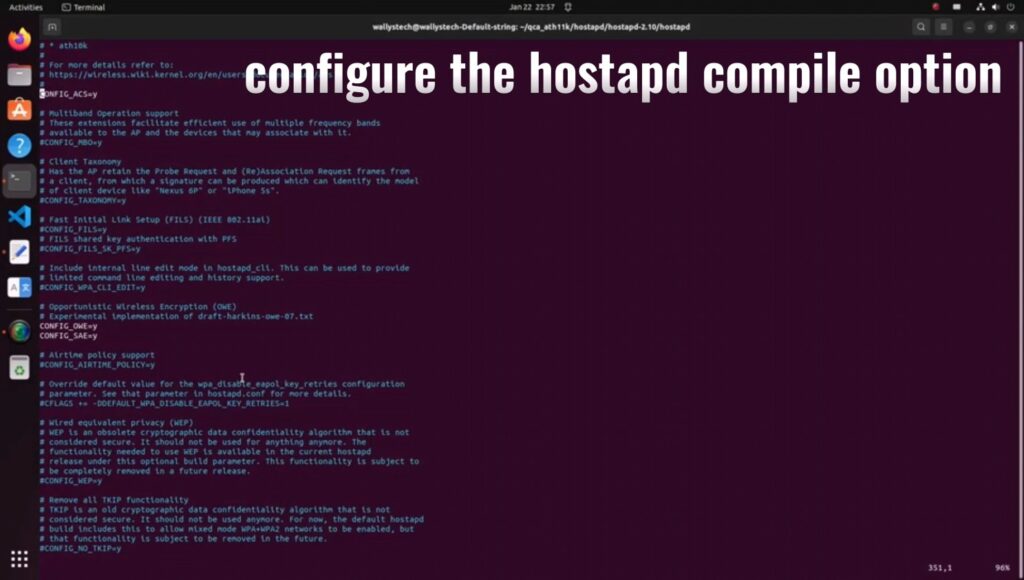
hostapd.config is a configuration which has set the type of wi-fi you want to enable and the following figure shows its typical structure:
I have marked the most important part with a red box, where ssid represents the name of the wifi and interface represents the device selected to enable wifi. By the way if you don’t know your interface name, you can use command: ip addr which can show you the information about the interface, the wireless interface always seem like wlan* or wlp*.
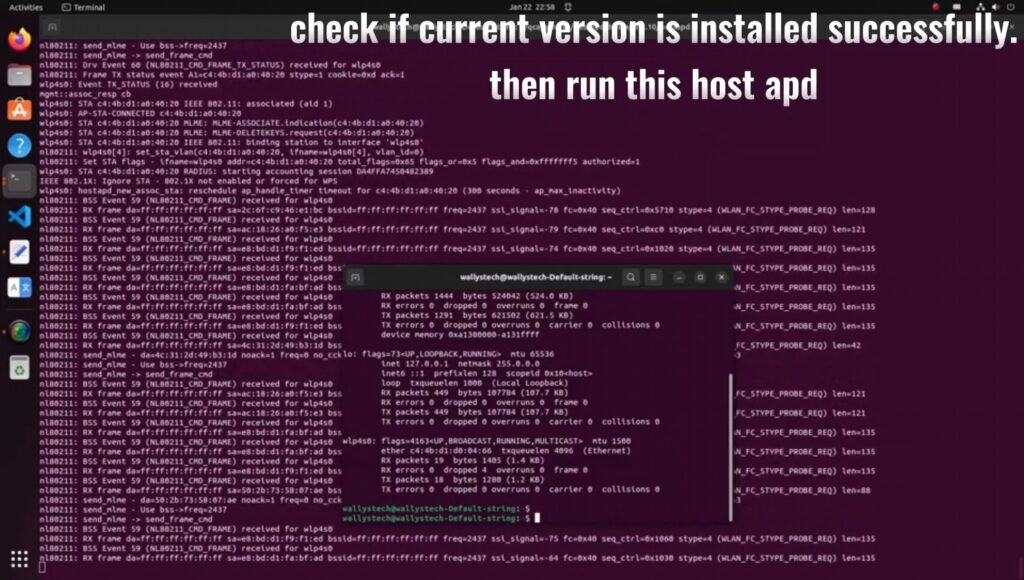
If you see following output after you use hostapd command:
this means you have successfully started the AP.
And when you see this:
it means a device connected to you access point.
This also means connect if you not set password:
Use wpa_supplicant to connect a access point
First, you should turn off ubuntu’s wifi tool by this command:
sudo nmcli radio wifi off
it will block you wifi function unblock wifi by use this command:
-i can set the interface you want to use to connect. wpa.config is a configuration which has set the type of wi-fi you want to connect and the following figure shows its typical structure:
you can change the ssid to which access point you want.
If you see following output after you use hostapd command:
this means connect successful.
If you want to connect a access point which has a password you should change the wpa_supplicant configuration like this:
the psk is the password proto and key_mgmt is the encryption options.
FAQ
when you see this output you can use: sudo rfkill unblock wifi
when you see this output that means you may run another wpa_supplicant, you should close it then you can run another wpa_supplicant if you don’t know where is it, you can use command: sudo killall wpa_supplicant to kill all wpa_supplicant.
Harnessing the Power of 524WiFi 6 DR9074-TRIBAND with x86 Platforms: Practical Case Studies
In the fast-evolving world of wireless networking, Wi-Fi 6E is transforming connectivity with its higher speeds, lower latency, and increased device capacity. At 524WiFi and Wallys, we are dedicated to providing high-performance, easily integrable industrial wireless hardware to empower developers, businesses, and innovators. This article explores how the 524WiFi 6 DR9074-TRIBAND Wi-Fi card paired with x86 platforms can deliver exceptional value and elevate your project outcomes.
Why Choose DR9074-TRIBAND with x86 Platforms?
Selecting the right hardware often involves addressing key challenges:
Does it meet current and future performance needs?
Is it compatible with existing systems?
Can it provide long-term reliability?
The 524WiFi 6 DR9074-TRIBAND card, powered by the Qualcomm QCN9074 chipset, supports Wi-Fi 6E across three frequency bands (2.4 GHz, 5 GHz, and 6 GHz). Combined with the computational power of x86 platforms, this pairing offers robust solutions for:
High-performance wireless access points (APs)
Extensive wireless mesh networks
Wireless protocol development and testing platforms
IoT gateways and data center connectivity
By integrating DR9074 and x86 platforms, we aim to help you build reliable, flexible, and scalable wireless networks for a wide range of applications.
Case Studies: How We Enable Success
Case 1: Deploying High-Performance Wireless Networks for SMEs
Challenge A small to medium-sized enterprise (SME) sought to enhance its internal network with low latency, high stability, and support for multiple concurrent connections.
524WiFi Solution
Provided the DR9074-TRIBAND card, seamlessly integrated with the client’s x86 motherboard via PCIe.
Enabled tri-band Wi-Fi using Ubuntu and the Ath11k driver.
Configured Hostapd to deploy an efficient wireless access point.
Results
Expanded Wi-Fi coverage to 150 meters and improved throughput by over 50%.
Maintained stable performance even under high concurrency, ensuring uninterrupted business operations.
“524WiFi hardware’s performance and ease of use allowed us to upgrade our network effortlessly, saving both time and budget.” — Client Feedback
Case 2: Building a Wireless Mesh Network for a Smart Campus
Challenge A smart campus required seamless wireless coverage across multiple buildings and open spaces with excellent roaming performance.
Wallys Solution
Configured multiple x86 devices, each equipped with a DR9074-TRIBAND card, to create mesh network nodes.
Utilized OpenWrt to establish the 6 GHz band as the backhaul, reducing interference.
Leveraged MU-MIMO and OFDMA to enhance connection density.
Results
Achieved full campus coverage with reduced latency using 6 GHz backhaul links.
Enabled seamless roaming for users, improving the overall smart campus experience.
For support drivers, please contact: 524wifi team
Case 3: Providing a Cost-Effective Wireless Testing Platform
Challenge A wireless technology research company needed a platform to test Wi-Fi 6E performance and optimize its products.
Wallys Solution
Paired x86 servers with DR9074-TRIBAND cards for a versatile testing framework.
Integrated tools like iperf3 and Wireshark to analyze bandwidth, latency, and protocols.
Simulated complex network environments under high load across multiple bands.
Results
Improved testing efficiency by 40% and reduced overall costs.
Enabled faster product launches with enhanced market readiness.
Our Commitment: Empowering Your Vision
At 524WiFi, we believe that the true value of technology lies in enabling others. Whether you’re an entrepreneur, developer, or researcher, our products and services are designed to help you:
Reduce Deployment Costs: Flexible hardware and software integration for faster implementation.
Accelerate Project Timelines: Comprehensive technical documentation and support to minimize trial and error.
Achieve Long-Term Goals: Hardware solutions that not only meet today’s needs but also prepare you for tomorrow’s challenges.
📩 For inquiries or hardware procurement, please contact us at [email protected] Let’s build the future of wireless networking together!
As wireless technology continues to evolve, the demand for high-performance solutions that can keep pace with increasing connectivity needs has never been greater. At the forefront of this revolution is the Qualcomm QCN9074 chipset, a powerful and versatile component designed to meet the rigorous demands of modern wireless networks. Here’s why the QCN9074 is considered the future of high-performance wireless solutions.
1. Cutting-Edge Wi-Fi 6 Technology
The QCN9074 chipset is built to fully harness the capabilities of Wi-Fi 6 (802.11ax), the latest and most advanced Wi-Fi standard. Wi-Fi 6 brings a host of improvements over previous generations, including faster speeds, greater capacity, and enhanced efficiency. With the QCN9074, you can achieve data rates that are up to four times faster than Wi-Fi 5, making it ideal for bandwidth-intensive applications such as video streaming, online gaming, and virtual reality.
2. Superior Multi-User Performance
One of the standout features of the QCN9074 is its support for OFDMA (Orthogonal Frequency Division Multiple Access) and MU-MIMO (Multi-User, Multiple Input, Multiple Output). These technologies allow the QCN9074 to handle multiple devices simultaneously without a drop in performance. This is particularly beneficial in environments with high device density, such as smart homes, offices, and public spaces, where multiple users need to access the network at the same time.
3. Exceptional Signal Quality and Coverage
The QCN9074 chipset is engineered to deliver superior signal quality and coverage. It supports 4×4 MIMO, which enhances the signal strength and extends the coverage area. Whether you’re deploying a network in a large office, a multi-story building, or an outdoor environment, the QCN9074 ensures that every corner is covered, providing a reliable connection even in challenging conditions.
4. Energy Efficiency
In today’s world, energy efficiency is a critical consideration for any wireless solution. The QCN9074 is designed with power-saving features that reduce energy consumption without compromising performance. This makes it an excellent choice for IoT devices, smart home applications, and other scenarios where power efficiency is crucial.
5. Versatile Frequency Support
The QCN9074 supports a wide range of frequency bands, including 2.4 GHz, 5 GHz, and 6 GHz. This versatility allows it to operate in various environments, from congested urban areas to remote industrial sites. The ability to switch between different frequency bands also ensures that your network can adapt to changing conditions and maintain optimal performance at all times.
6. Robust Security Features
With increasing concerns about cybersecurity, the QCN9074 offers advanced security features to protect your wireless network. It supports the latest WPA3 security protocol, providing enhanced protection against unauthorized access and ensuring that your data remains secure. This is particularly important in enterprise and industrial environments where sensitive information is transmitted over the network.
QCN9074 6E CARD
DR9074-Triband Spes
Symbol: Parameter
Chipset: Qualcomm Atheros QCN9024
WLAN Host Interface: PCI Express 3.0 Interface
System Memory: 2Mbit serial I²C bus EEPROM
Standard Operating Voltage: 3.3V
Operating Systems: QSDK
Host Interface: M.2 E Key
Antenna Cable / Port: 4 x ufl Connectors, 4T4R
Frequency Range: 2.412GHz-2.472GHz & 5.18GHz-5.825GHz & 5.925GHz-7.125GHz
Data Rates: Maximum 23dBm per chain, up to 4804Mbps
Temperature Range: Operating: -20°C to 70°C, Storage: -40°C to 90°C
Humidity: Operating: 5% to 95% (non-condensing), Storage: Max. 90% (non-condensing)
Certification: TBD
Reference Design: PN02
Power Consumption: TBD
Dimensions (WxHxD): 57mm x 63mm x 6mm
Conclusion
The Qualcomm QCN9074 chipset is more than just a component; it’s a gateway to the future of wireless technology. With its advanced features, superior performance, and versatility, the QCN9074 is poised to lead the next generation of high-performance wireless solutions. Whether you’re building a smart home, deploying an enterprise network, or designing an industrial application, the QCN9074 offers the reliability and performance you need to stay ahead in a rapidly evolving digital world.
As the demand for faster, more reliable, and more secure wireless networks continues to grow, the QCN9074 stands out as a future-proof solution that can meet the challenges of tomorrow’s connectivity needs today.
If you’re looking for a QCN9074-based module, consider the 524WiFi DR9074 network card. The DR9074 is a high-performance network card designed by 524WiFi and Wallys, offering multiple configurations to meet the diverse needs of industrial projects.
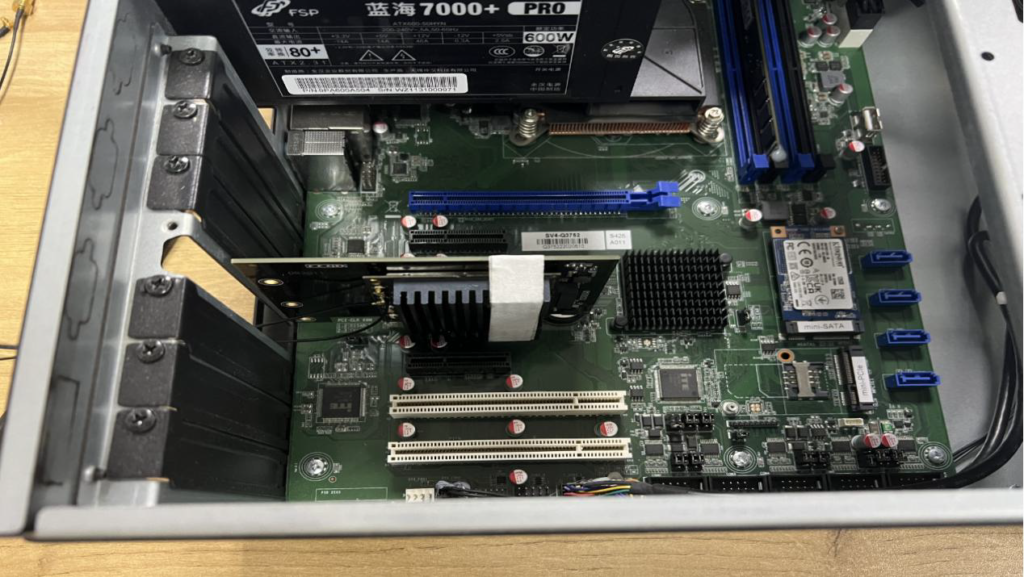
Looking for a robust WiFi solution for your Linux Ubuntu PC? Discover the 524WiFi 6 DR9074-Triband card, which seamlessly connects to your PC via the DR3G11 adapter board on Ubuntu 22.04!
The DR9074-Triband supports selectable 2.4G, 5G, and 6G bands on a single WiFi module, powered by the Qualcomm QCN9024 chipset. It’s ideal for applications like security surveillance, hotel wireless, and specialized scenarios such as forest fire protection. With a data rate of up to 4949Mbps, it’s built to meet high-bandwidth demands in challenging environments.
The DR9074-Triband ensuring stable and high-speed connectivity for your most demanding projects.
Check out our latest tutorial following the release of our video guide “How to Load Driver for DR9074-Triband on Linux.” We’ve received valuable feedback and have compiled common queries to bring you an enhanced tutorial experience.
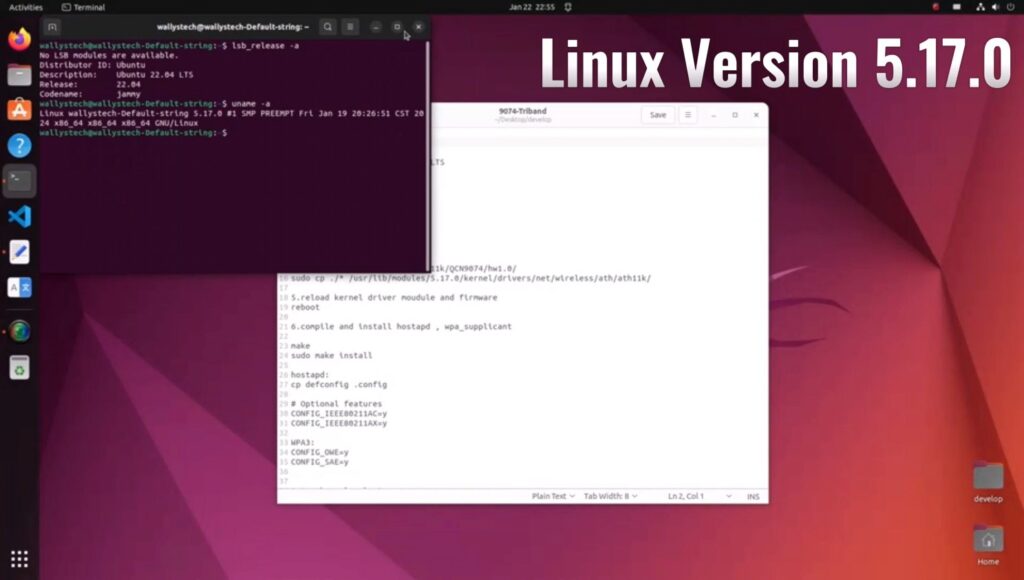
In this updated tutorial, we’ve included step-by-step instructions on downloading Ubuntu 22.04 and compiling Kernel 5.17, building upon the previous content. This video serves as a standard example, but you can customize it according to your specific project requirements.
Stay ahead of the curve and optimize your Linux setup with our comprehensive guide.
NEW 524 WIFI DUAL BAND TRI-BAND DR9074 WIFI 6/6E MODULES INFO – “WE CAN HELP OUR CUSTOMERS DEVELOP ATH11K TO BE USED WITH DR9074 CARDS” :
Informations regarding Linux and OpenWRT drivers – The ath11k code from github can’t support the dual / tri band card now, it needs modification. Wallystech and 524WiFi did some changes and applied in Linux kernel version 5.17.0 – if you use different kernel version, then 524WiFi will do some work for you. That is a Linux issue, there are some incompatible with different kernel versions. So the Customer need tell us the kernel version, then we release the ath11k and board-2.bin, bdf and amss.bin to customer – all is binary. Jason, chief of development, told us : “We will build it based on the Customer’s Linux version, The kernel should be 5.17 up. The Card can be AP or Client mode on x86. We do it better than others, DR9074 Triband and Dualband cards are very good and its is powerful opportunity for all customers developing WiFi6 devices. We have software engineers and we we have resources to support all Customers tu use our WiFI6 modules“
If The Customer has big volume order, then we can open the ath11k code to the customer customer based on NDA, SLA.
HOW TO USE 524WIFI 6 DR9074-TRIBAND M.2 WIFI MODULE TOGETHER WITH WALLYS ROUTER PCBA OR A THIRD PARTY X86 ECOSYS LIKE UBUNTU? AND LOADING QCN9024 QCN9074 – DR9074-TRIBAND DRIVER ON LINUX 5.17.0 – STEP-BY-STEP GUIDE !
As you know, 524WiFI recently has launched two new unique Wifi modules DR9074-Triband M.2 and DR9074E – Dual Band miniPCIe,Today, this article will present how to use the module together with target platform. OpenWRT systems also use ath11k, so the information above is same for OpenWRT users.
(1) USAGE WITH WALLYS ROUTER PCBA WITH QCA IPQ 6018 CPU AND QSDK FIRMWARE :
DR6018 PCBA x1 (the board has to be pre-flashed with an exclusive version of firmware which we developed via QSDK and bootargs has been pre-set under U-boot CLI to ensure the correct board_id for the module ) DR9074-Triband M.2 wifi module x1
After we plug the module onboard and power on, we can access to the GUI webpage via board’s default ip address 192.168.1.1, login (admin / asdf1234)
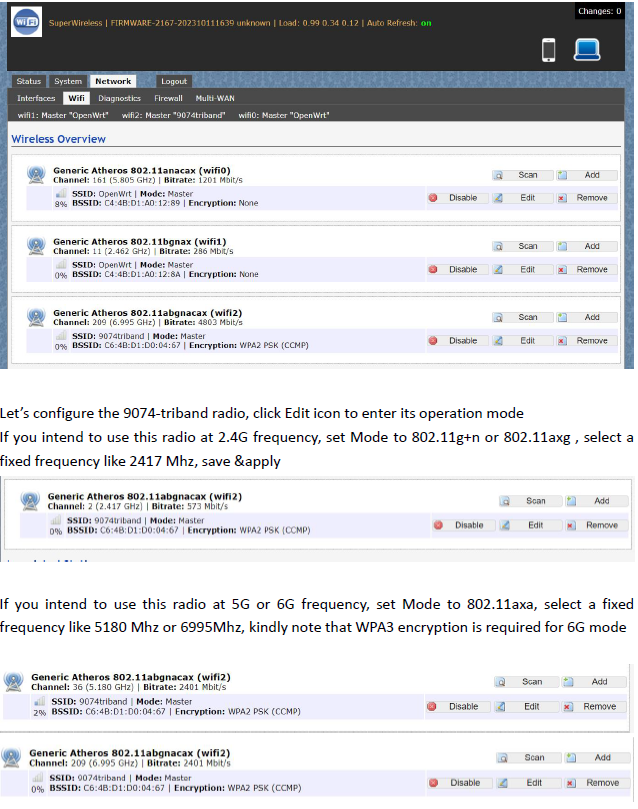
Network>Wifi, at this section, as we can see, there are three radios available, they are Wifi0(2.4G radio),Wifi1(2.4G radio), Wifi2(9074-triband selectable radio)
Let’s configure the 9074-triband radio, click Edit icon to enter its operation mode. If you intend to use this radio at 2.4G frequency, set Mode to 802.11g+n or 802.11axg , select a fixed frequency like 2417 Mhz, save &apply
If you intend to use this radio at 5G or 6G frequency, set Mode to 802.11axa, select a fixed frequency like 5180 Mhz or 6995Mhz, kindly note that WPA3 encryption is required for 6G mode
Bitrate can be up to 4803Mbit/s under 160Mhz channel spectrum width, both 5G and 6G mode support 160Mhz channel spectrum width. And the 9074-triband module can work under both ap and sta mode
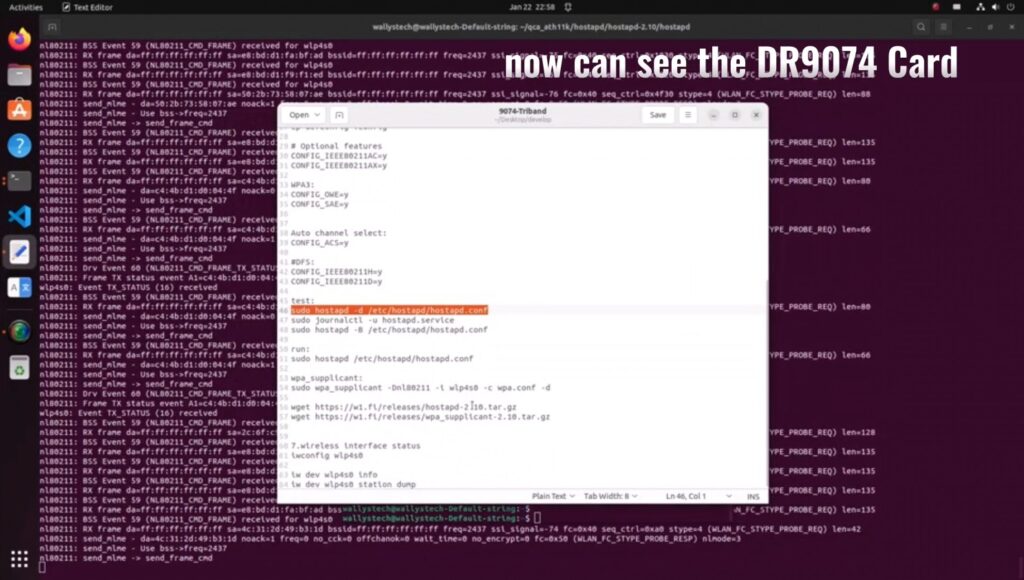
The kernel version is 5.17.0 which integrated ath11k driver Use this command ‘sudo hostapd -dd /etc/hostapd/hostapd.conf ’to enable the module under AP mode
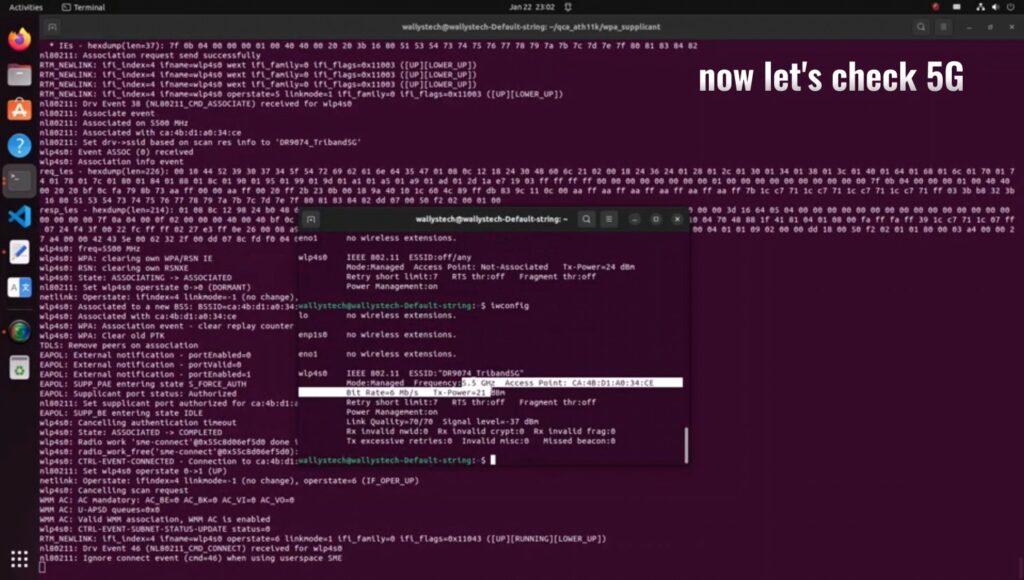
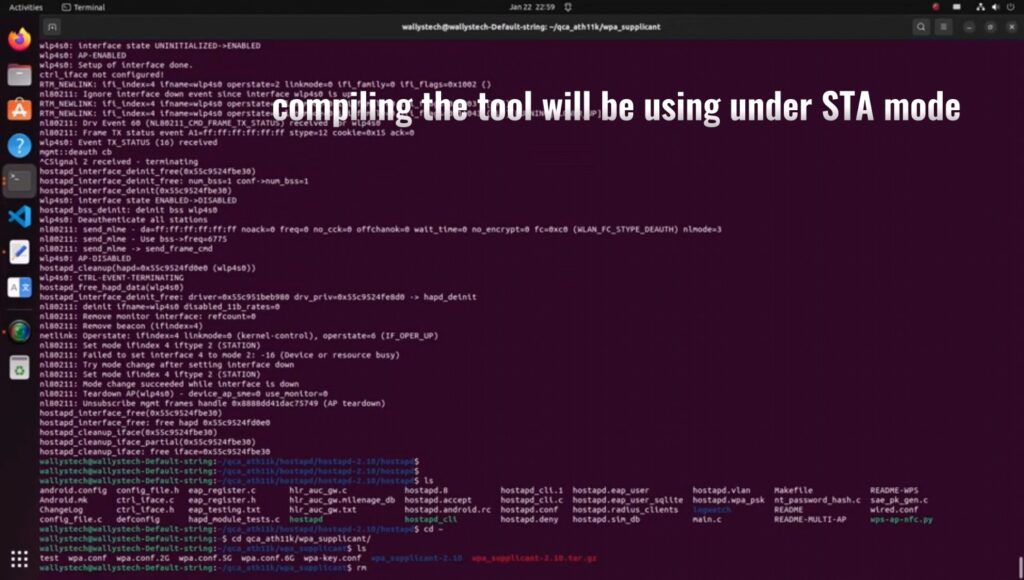
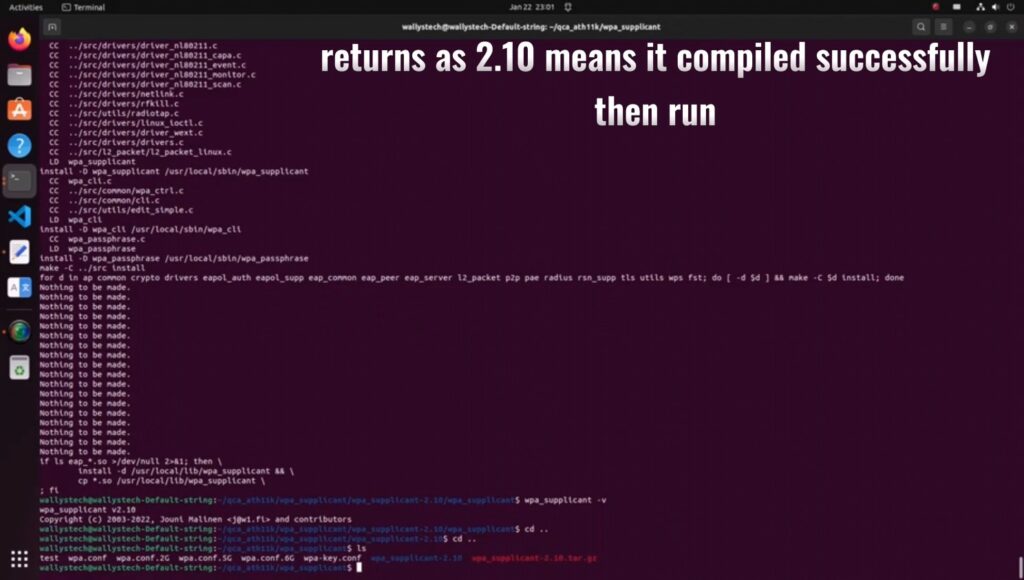
The module can work under STA mode as well, and this command need to be run ‘ sudo wpa_supplicant -Dnl80211 -i wlp4s0 -c wpa.conf’ If you are interested in the product or have any technical questions, feel free to reach out 524WiFi or Wallys team
QCN9024 QCN9074 | LOADING DR9074-TRIBAND DRIVER ON LINUX 5.17.0 – STEP-BY-STEP GUIDE
Wallys recently announced the compatibility of DR9074-TRIBAND with ATH11K on Linux, expanding its support beyond Qualcomm platforms to various Linux embedded systems, including Ubuntu. In this guide, we’ll walk you through the process of loading the driver for DR9074-Triband on Linux 5.17.0, demonstrating its seamless integration with ath11k. The module is showcased to function effectively in both AP (Access Point) and STA (Station) modes across the 2.4GHz, 5GHz, and 6GHz bands.
INTRODUCTION TO DR9074 (QCN9024):
DR9074-Triband equipped with the Qualcomm Atheros QCN9024 chipset, is an advanced enterprise wireless module. It incorporates a 4×4 MU-MIMO Dual Band Wireless Module, tailored for mobile access in high-bandwidth applications such as video streaming, voice communication, and data transmission. Key features include a maximum power of 23 dBm per chain, supporting data rates up to 4949Mbps. Operating in Tri-Band (2.4GHz, 5GHz, and 6GHz) with 4×4 WiFi 6E (802.11ax) and 4 spatial streams, it features an M.2 E Key Interface and PCI Express 3.0 Interface. Applications span security surveillance, commercial radio coverage, hotel wireless setups, and specialized scenarios.
Device Specifications:
Chipset: Qualcomm Atheros QCN9024
WLAN Host Interface: PCI Express 3.0
Frequency Range: 2.412GHz-2.472GHz & 5.18GHz-5.825GHz & 5.925GHz-7.125GHz