IPQ 5018 DR5018S: A Powerful Network Device with 2.4G, 5G, and 6G Support, CE-UKCA-FCC Certifications
The router board DR5018S is an innovative network device based on Qualcomm’s IPQ5018 SOC chipset, designed to meet the high demands of various commercial and industrial applications. With its powerful performance and multifunctional configuration, it stands out as one of the leading Wi-Fi 6 solutions in the industry. Below, we provide a detailed analysis of the DR5018S’s features and advantages, offering a comprehensive understanding of this exceptional device.
Core Hardware: IPQ5018 SOC Chipset
The DR5018S is powered by Qualcomm’s IPQ5018 chipset, a leader in Wi-Fi 6 technology. This chipset delivers higher transmission speeds, lower latency, and more stable connections, excelling at handling multi-device connections and high-bandwidth demands. It is ideal for both commercial and industrial environments, managing a large number of simultaneous device connections while maintaining network stability and performance.
Multi-Band Support: 2.4G, 5G, and 6G
A standout feature of the DR5018S is its support for three frequency bands: 2.4GHz, 5GHz, and 6GHz. This tri-band support provides a flexible network solution for various application scenarios. In crowded Wi-Fi environments, selecting the right frequency band helps avoid interference, ensuring faster speeds and higher stability.
2.4GHz: Ideal for wider coverage, though with lower speeds. Best for devices with low bandwidth needs.
5GHz: Offers higher speeds, making it suitable for modern devices requiring higher bandwidth and low latency.
6GHz: As part of Wi-Fi 6E, 6GHz offers clearer channels with less interference, perfect for high-density environments and bandwidth-intensive applications.
This tri-band support allows the DR5018S to deliver outstanding performance, addressing different connection needs across various environments.
Available Versions for Customization
The DR5018S is available in multiple versions to meet your specific project needs:
The DR5018S is equipped with built-in GPS functionality, making it ideal for applications requiring precise location tracking. This feature is especially useful in asset management, fleet tracking, and location-based services. Whether in smart transportation, logistics, or other industries that require accurate positioning, the DR5018S provides robust support.
Global Certifications: CE, UKCA, FCC
The DR5018S holds multiple global certifications, including CE (European Union), UKCA (United Kingdom), and FCC (United States), ensuring compliance with regulatory standards across major international markets. These certifications guarantee that the DR5018S meets high-performance and safety standards, allowing seamless use across regions without legal or regulatory issues.
CE Certification: Complies with health, safety, and environmental standards for the European market.
UKCA Certification: Meets UK market requirements, ensuring smooth access to the UK market.
FCC Certification: Ensures compliance with wireless communication requirements in the U.S., preventing excessive wireless interference.
These certifications are essential for the sale and use of electronic products globally, allowing the DR5018S to be easily promoted and deployed in international markets.
Comprehensive Advantages
Powerful Processing Capability: The IPQ5018 chipset offers strong network processing, handling high volumes of device connections with ease.
Tri-Band Support: Supports 2.4GHz, 5GHz, and 6GHz frequency bands for flexible and efficient network services.
Built-In GPS Functionality: Strong support for location-based applications, expanding use cases.
Global Certifications: With CE, UKCA, and FCC certifications, the DR5018S meets regulatory requirements for global markets.
Stability and Compatibility: Wi-Fi 6 technology ensures excellent performance in high-density environments, offering greater adaptability.
Conclusion
The DR5018S is a highly integrated, high-performance network device that combines Wi-Fi 6 technology, tri-band support, built-in GPS functionality, and global certifications, making it suitable for a wide range of applications. Whether for commercial offices, industrial networks, or smart device applications requiring precise location tracking, the DR5018S ensures stable, reliable network connections and accurate positioning services. With its global certifications, it can be deployed confidently across international markets, expanding your business reach.
The DR5018S is not just a technologically advanced product; it’s a standout solution in the global network connectivity space.
Anyone here using the DR4029 or DR4019 with a Quectel 5G modem for OpenWrt development? We just got ours set up as a plug-and-play and compiled it into firmware.
Introducing the New OpenWrt Modem Manager Firmware for DR 4019 / 4029 !
We’re thrilled to announce the release of our latest OpenWrt Modem Manager firmware, designed to make setting up your Wallys DR4019 router with the Quectel RM520N-GL modem easier and more efficient than ever before.
Key Benefits:
Simplified Setup: Say goodbye to complex command-line configurations. Our user-friendly interface gets you up and running in no time.
Enhanced Efficiency: Focus on what truly matters—your projects—while we take care of the modem setup.
Industrial-Grade Reliability: Perfect for smart cities, security systems, and other demanding applications.
Whether you’re working on cutting-edge industrial solutions or need a reliable cellular connection, this firmware is here to help you get the most out of your DR 4019 / 4029 board.
I figured it out! The OpenWrt Modem Manager for DR4019 offers a much better user experience compared to manually configuring the Quectel modem via CLI !
As the demand for reliable and flexible cellular connectivity solutions grows, it’s crucial to evaluate the tools we use. Two popular options are OpenWrt’s QMI cellular and Quectel’s network manager. Here’s a breakdown of their strengths and weaknesses:
OpenWrt’s QMI Cellular
Advantages:
Customization: OpenWrt’s open-source nature allows for extensive customization to meet specific needs.
Community Support: Being open-source, it benefits from a large community that contributes to its development and provides support.
Flexibility: Integrates well with various hardware and software setups, offering versatility for different use cases.
Cost-Effective: Free to use, which can be a significant advantage for small businesses or projects with limited budgets.
An APN (Access Point Name) is the gateway configuration that tells your cellular module which network path to use when connecting to the internet or a private data network. Think of it as the “address” your device hands to the carrier to establish a data session. It determines routing, IP assignment, and in many cases, what security policies apply to your traffic.
APNs exist because carriers need to route data traffic to different destinations: a consumer browsing social media, a fleet vehicle reporting GPS, and a medical device uploading readings all have very different requirements – and the APN is how the network tells them apart.
In IoT deployments, leaving the APN on auto-detect is a common mistake. Manually setting it ensures your device consistently connects to the right context, especially critical when using IoT SIMs, private APNs with fixed IPs, or roaming SIMs where auto-selection can land you on a suboptimal or even incorrect bearer. A wrong or missing APN means no data, silent failures, and hours of debugging that could have been avoided with a single AT command.
How to set “my APN” in a cellular module?
By default, cellular modules come without a pre-defined APN (Access Point Name). It is however best practice to set this to the correct value to tell the module how to get online
AT+CGDCONT=1,"IPV4V6","techship.com" // Set APN
OK
AT+CGDCONT? // Query APN
+CGDCONT: 1,"IPV4V6","techship.com","0.0.0.0.0.0.0.0.0.0.0.0.0.0.0.0",0,0,0,0,,,,,,,,,,"",,,,0
AT+CFUN=1,1 // Restart the module for settings to take effect
Via Windows GUI:
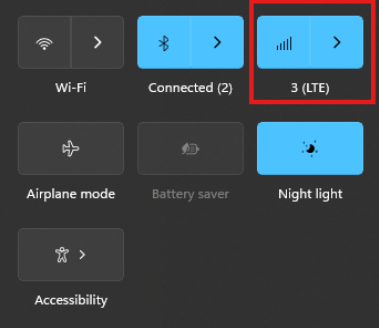
The connection manager settings and controls can be found and accessed on Windows desktop start menu through the network icon (see picture)
The Cellular tab can be found in Windows system settings and the connection APN details can be manually entered through “Advanced options”
Via Linux ModemManager/NetworkManager:
Using NetworkManager and ModemManager in Linux to automatically establish a connection and configure IP details
In this article we will show how to set up NetworkManager to automatically configure, establish the cellular data connection in your system.
NetworkManager and ModemManager are open source tool for Linux to manage several types of networks and interfaces such as ethernet, wifi, etc. It can also manage cellular WWAN interfaces through the ModemManager tool. It is hosted by the Freedesktop.org community and driven by Aleksander Morgado and other contributors. please visit https://wiki.gnome.org/Projects/NetworkManager and https://www.freedesktop.org/wiki/Software/ModemManager/ for latest information, source code, API reference manuals, debugging tips, contribution, mailing list etc.
ModemManager is capable of communicating over several types of device control channels such as QMI/RMNET, MBIM, MODEM / AT command etc. But support for vendor proprietary or out-of-kernel drivers are none or very limited. Such drivers are gobinet, simcom_wwan and other drivers provided by the vendors directly.
Many Linux distributions have NetworkManager and ModemManager pre-installed or they can typically easily be installed through the systems package manager. In Ubuntu for example apt can install it for you by command if not already installed: apt install network-manager
Check with commands below that you have both tools installed in system and their versions. NetworkManager -V ModemManager -V
ModemManager (and NetworkManager) are continuously developed for better compatibility with the cellular devices, therefore it is recommend to use a recent version of the tools and in case of problem situations, evaluate the latest versions from source and check the mailing list archives for possible discussions on the problem experienced.
Keep in mind that NetworkManager and ModemManager projects are not directly developed or driven by the cellular device vendors and the compatibility with the device you aim to use can be limited. Some vendors contribute with code to make their devices fully compatible, while others don’t. Many cellular devices can be set to expose standardized types of USB network interface and control channel such as MBIM interface by USB-IF or the Qualcomm proprietary interface QMI that ModemManager will try to identify, and often manage to work successfully with but there are exceptions also.
Both NetworkManager and ModemManager have command line interfaces (nmcli and mmcli respectively) where you can interact with the management tools.
Have ModemManager list all the cellular device it has detected. Here we use the Alcatel IK41 series with MBIM interface in this example: mmcli –list-modems /org/freedesktop/ModemManager1/Modem/0 [Alcatel] Mobilebroadband
Check that the cellular device is managed by NetworkManager by not having state “unmanaged” listed for it. nmcli device status DEVICE TYPE STATE CONNECTION cdc-wdm0 gsm disconnected — enp3s0 ethernet unmanaged — lo loopback unmanaged —
Now you should create a connection profile in NetworkManager for your specific network carrier and SIM card with the “nmcli connection add” command: For example: nmcli connection add type gsm ifname ‘*’ con-name ‘3-sweden’ apn ‘data.tre.se’ connection.autoconnect yes gsm.pin 0000
– type is gsm for all typical cellular connections unless it is of cdma type. – ifname is the control interface name, in this case cdc-wdm0, wildcard can be used also to have it autoselect. – con-name is the profile name you want to give it. – apn is provided by your network carrier and tells the modem what attach point it should use for the data connection. – connection.autoconnect set to yes will make NetworkManager always try to auto connect and maintain this profile connection. – gsm.pin lets you provide a pin code for the SIM card, that NetworkManager will try to use if PIN check is enabled for SIM card.
There are several additional commands and attributes available such as username and password settings for the APNs etc. Refer to the NetworkManager help and manual pages for full details on the commands.
If successful you should receive a reply similar to this one: Connection ‘3-sweden’ (cad6fcbf-2cb1-4796-b7e6-67b9f9635aef) successfully added.
You can check the status now by command: nmcli device status DEVICE TYPE STATE CONNECTION cdc-wdm0 gsm connected 3-sweden enp3s0 ethernet unmanaged — lo loopback unmanaged —
Where connected should be listed as state if the connection establishment was successful.
If the connection is not successful or you want more details about the device and connection you can check commands:
You can list the current status with command: nmcli radio WIFI-HW WIFI WWAN-HW WWAN enabled enabled enabled enabled
nmcli connection show NAME UUID TYPE DEVICE 3-sweden e946017f-2e9c-477b-89ad-4c31e7331d65 gsm cdc-wdm0
Ifconfig should now show the related IP address details already set to the network interface by NetworkManager: ifconfig wwan0: flags=4291 mtu 1500 inet 2.68.73.130 netmask 255.255.255.252 broadcast 2.68.73.131 inet6 2a02:aa1:1017:6d11:6474:7254:7b72:eb09 prefixlen 64 scopeid 0x0 inet6 2a02:aa1:1017:6d11:1060:3dff:feac:e92f prefixlen 64 scopeid 0x0 ether 12:60:3d:ac:e9:2f txqueuelen 1000 (Ethernet) RX packets 186 bytes 10886 (10.8 KB) RX errors 0 dropped 0 overruns 0 frame 0 TX packets 5 bytes 480 (480.0 B) TX errors 0 dropped 0 overruns 0 carrier 0 collisions 0
You can now for example test the connection over the network interface by sending ping requests. Testing IPV4 connection: ping -4 -I wwan0 8.8.8.8 PING 8.8.8.8 (8.8.8.8) from 2.68.73.130 wwan0: 56(84) bytes of data. 64 bytes from 8.8.8.8: icmp_seq=1 ttl=118 time=55.8 ms 64 bytes from 8.8.8.8: icmp_seq=2 ttl=118 time=45.4 ms 64 bytes from 8.8.8.8: icmp_seq=3 ttl=118 time=42.9 ms — 8.8.8.8 ping statistics — 3 packets transmitted, 3 received, 0% packet loss, time 2003ms rtt min/avg/max/mdev = 42.918/48.053/55.845/5.601 ms
Testing IPV6 connection: (if your cellular device, network subscription and APN supports it) ping -6 -I wwan0 2600:: PING 2600::(2600::) from 2a02:aa1:1017:6d11:1060:3dff:feac:e92f wwan0: 56 data bytes 64 bytes from 2600::: icmp_seq=1 ttl=46 time=172 ms 64 bytes from 2600::: icmp_seq=2 ttl=46 time=171 ms 64 bytes from 2600::: icmp_seq=3 ttl=46 time=169 ms 64 bytes from 2600::: icmp_seq=4 ttl=46 time=168 ms — 2600:: ping statistics — 4 packets transmitted, 4 received, 0% packet loss, time 3004ms rtt min/avg/max/mdev = 167.921/170.037/172.272/1.651 ms
The connection is successful and automatic reconnect is working when testing to unplug and plug in the device again. For additional configurations, commands and available attributes, please relate to the manual pages for NetworkManager and ModemManager.
Troubleshooting logs: NetworkManager and ModemManager write log messages to the Linux syslog file /var/log/syslog. In case of problems with establishing a cellular data connection, please copy the logfile after the problem have appeared and include it in a Techship technical support ticket.
In some situations more detailed debug logs are needed, these can be acquired by changing the log levels for NetworkManager and ModemManager and run them manually.
To capture debug logs, please first disable and stop the normal services: systemctl stop NetworkManager ModemManager systemctl disable NetworkManager ModemManager
Run them manually in background with debug level set: /usr/sbin/ModemManager –log-level=DEBUG &> /dev/null & /usr/sbin/NetworkManager –log-level=DEBUG &
Reproduce the cellular data connection problem. Once completed, kill the processes: killall -TERM NetworkManager ModemManager
Copy the relate messages in syslog to a mm-nm-sys-debug.log logfile: grep -E ‘ModemManager|NetworkManager|systemd|dbus-daemon|dhclient’ /var/log/syslog > mm-nm-sys-debug.log
Activate and start the services again: systemctl enable NetworkManager ModemManager systemctl start NetworkManager ModemManager
Include the mm-nm-sys-debug.log in a technical support ticket at Techship.com where you describe the issue in details and include other relevant information also such as kernel version, ModemManager and NetworkManager versions, dmesg log etc.



 Introducing the New OpenWrt Modem Manager Firmware for DR 4019 / 4029 !
  Key Benefits:
 OpenWrt’s QMI Cellular