

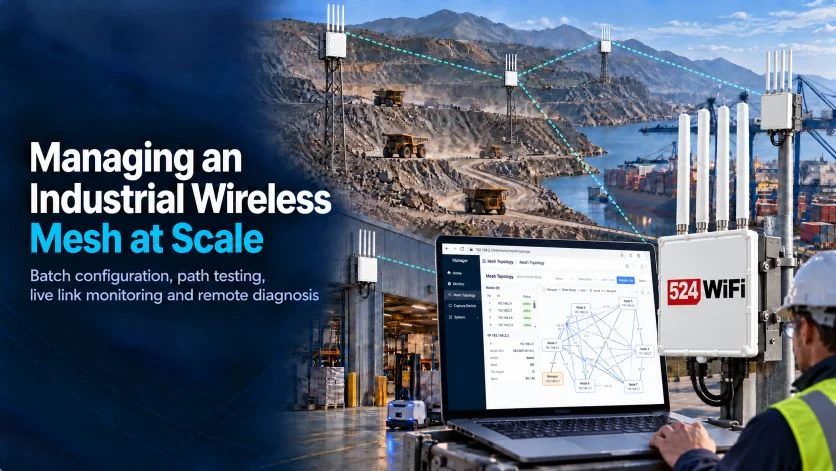
Batch configuration, path testing, live link monitoring and remote diagnosis for DR5018S Mesh networks

Getting three mesh nodes to talk to each other is easy. Running thirty, across a mine, a port yard, or a warehouse full of AMRs, is a different problem.
Once a mesh grows past a handful of nodes, the pain stops being radio configuration and becomes operations:
- Which of the 30 nodes is actually online right now?
- Which path is my traffic taking, and is it the best one?
- How do I push a firmware update to every node without driving around with a laptop?
- A robot lost connection. Which link is the culprit?
That is why we built the WiFI Mesh Controller, a management layer for DR5018S Mesh networks.
1. Find, configure and upgrade nodes in batches
The controller scans the network, discovers the nodes, and lets you configure and manage them in bulk rather than logging into each device one by one. Firmware upgrades work the same way: one click, all selected nodes. For a site with dozens of nodes, this turns a day of manual work into a few minutes.

2. Let the network find the best path, or choose it yourself
Between any two nodes, the controller can test candidate paths for packet loss, signal strength and latency, and select the best route automatically.
Sometimes you don’t want automatic. Maybe you need traffic to follow a physical corridor, or you want to isolate a problem hop. For that, you can specify a custom path, for example A → C → D → B, and the controller will use it.

3. See link quality in real time
The controller shows live node status (online or offline) and link quality across the mesh. When a better link becomes available, traffic can switch to it automatically, and you can see the current backhaul path at a glance. A batch view of mesh link data lets you compare many links side by side, which makes weak spots easy to find before they become outages.

4. Diagnose problems remotely
When something goes wrong at a site you can’t visit, remote diagnosis lets you inspect the situation from where you are. That means fewer truck rolls and faster recovery, which matters most in places like mines, ports and remote industrial sites.

Built for the radios in the field
The controller manages the DR5018S Mesh family (Qualcomm IPQ5018, Wi-Fi 6), available in 2.4+5+5 GHz, 2.4+5 GHz and 5 GHz-only versions. Our general band guidance:
- Mining and tunnels: use 2.4 GHz for the mesh, because it penetrates better.
- Most other deployments: use 5 GHz for the mesh. Dual-5 GHz models are better at avoiding interference.
- When 5 GHz carries the mesh, the 2.4 GHz radio can run as an AP for local debugging and configuration.
Nodes are plug-and-play for the mesh, with no AP/STA pairing to manage when you extend the range.
What performance can you expect?
As a tested reference: in a three-node, two-hop setup with 5 GHz and 6 GHz backhaul, 10-stream iperf3 reached roughly 624–634 Mbps aggregate. In a separate outdoor test, a four-node, three-hop chain covered about 200 m per hop.
These are reference results, not guarantees. Antenna gain, mounting height, obstructions, interference and local regulations all matter, so please run a site survey. Channels, power and country-code settings must follow local rules.
Where it fits
AGV and AMR fleets, factory automation, logistics sorting, ports and airports, mining and energy, rail transit, industrial parks, video surveillance, and mobile command networks.
Want to see every screen and setting in detail?
We’ve put together a detailed Mesh Controller User Manual covering installation, node management, path configuration and link monitoring, with step-by-step screenshots.
📩 To get the full User Manual, email us info at 524wifi.com or net and ell us a little about your project (site type, number of nodes, hops) and we’ll send it over and help you choose the right DR5018S variant.