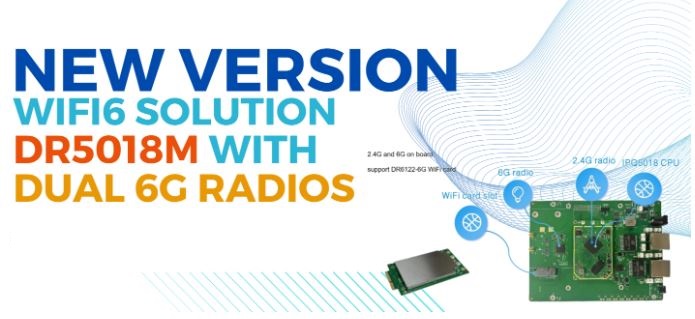
Introducing the 524WiFi DRiver DR5018M: Advanced, Cost-Effective Wireless Solutions
The DR5018M sets a new standard in wireless communication solutions, combining advanced technology with cost-effectiveness. Designed for flexibility and high performance, this router board is ideal for a wide range of applications, from home and office setups to custom commercial products.
Technical Specifications:
– Processor: Qualcomm-Atheros IPQ5018 Dual-core ARM 64-bit A53 @ 1.0GHz
– Memory: 512MB DDR3L with 16-bit interface and 32-bit memory bus design
– Storage: 8MB NOR Flash, 128MB NAND Flash
– Ethernet:
– Version 1: 2 x 1Gbps Ethernet Ports
– Version 2: 1 x 1Gbps Ethernet Port, 1 x 2.5Gbps PoE Port
– PCIe 3.0: 1x PCIEx2 Interface
– SGMII: 1x SGMII Interface
– UART: 1x UART Interface
– GPIO: 13 x GPIOs
– Wireless:
– On-board 2×2 2.4GHz MU-MIMO OFDMA supporting 802.11b/g/n/ax, max 21dBm per chain with 2x IPEX Connectors
– Another version with 2x MMCX Connectors
– Power Output: 5VDD
– Dimensions: 60mm x 40mm(SOM MODULE)
Expansion and Customization Options:
The DR5018M features multiple M.2 card slots for extensive customization, supporting:
Engineered for robust performance, the DR5018M excels in point-to-point (PTP) applications, delivering impressive throughput in real-world tests:
3.3KM PTP Test:
– 5GHz: 949Mbps
– 6GHz: 821Mbps
1.5KM PTP Test:
– 5GHz: 1.5Gbps
– 6GHz: 1Gbps
Versatility for Various Applications:
The DR5018M is perfect for diverse environments and uses. Its modular design supports a wide range of applications, including:
– Custom low-cost outdoor access points
– Customer Premises Equipment (CPE)
– Smart vending machines
– Ticket stations
– Home and office networks
– Homelabs
Future-Proof and Scalable:
Designed with future firmware updates in mind, the DR5018M ensures long-term usability and support for the latest technologies. Its versatile connectivity options and robust performance make it an ideal choice for future-proof, scalable solutions.
Explore the Possibilities:
With the DR5018M, you are investing in a high-performance, customizable, and cost-effective wireless communication solution. Whether you’re enhancing your current setup or developing new products, the DR5018M offers the power and flexibility you need.
Discover the DR5018M and elevate your wireless communication capabilities. Experience the perfect blend of advanced technology and cost-efficiency for all your wireless needs.
These results highlight the exceptional capabilities of the DR6018S, making it a top choice for high-performance, long-range applications. With its robust throughput and reliable signal strength, this solution is ideal for a wide range of commercial and industrial projects.
Ready to elevate your connectivity? Contact us to learn more about the DR6018S and how it can meet your project needs!
An APN (Access Point Name) is the gateway configuration that tells your cellular module which network path to use when connecting to the internet or a private data network. Think of it as the “address” your device hands to the carrier to establish a data session. It determines routing, IP assignment, and in many cases, what security policies apply to your traffic.
APNs exist because carriers need to route data traffic to different destinations: a consumer browsing social media, a fleet vehicle reporting GPS, and a medical device uploading readings all have very different requirements – and the APN is how the network tells them apart.
In IoT deployments, leaving the APN on auto-detect is a common mistake. Manually setting it ensures your device consistently connects to the right context, especially critical when using IoT SIMs, private APNs with fixed IPs, or roaming SIMs where auto-selection can land you on a suboptimal or even incorrect bearer. A wrong or missing APN means no data, silent failures, and hours of debugging that could have been avoided with a single AT command.
How to set “my APN” in a cellular module?
By default, cellular modules come without a pre-defined APN (Access Point Name). It is however best practice to set this to the correct value to tell the module how to get online
AT+CGDCONT=1,"IPV4V6","techship.com" // Set APN
OK
AT+CGDCONT? // Query APN
+CGDCONT: 1,"IPV4V6","techship.com","0.0.0.0.0.0.0.0.0.0.0.0.0.0.0.0",0,0,0,0,,,,,,,,,,"",,,,0
AT+CFUN=1,1 // Restart the module for settings to take effect
Via Windows GUI:
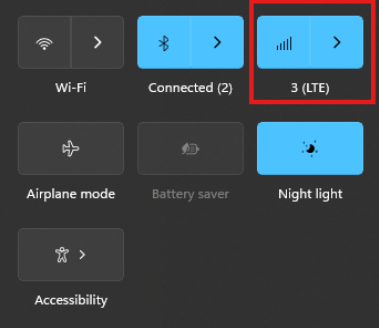
The connection manager settings and controls can be found and accessed on Windows desktop start menu through the network icon (see picture)
The Cellular tab can be found in Windows system settings and the connection APN details can be manually entered through “Advanced options”
Via Linux ModemManager/NetworkManager:
Using NetworkManager and ModemManager in Linux to automatically establish a connection and configure IP details
In this article we will show how to set up NetworkManager to automatically configure, establish the cellular data connection in your system.
NetworkManager and ModemManager are open source tool for Linux to manage several types of networks and interfaces such as ethernet, wifi, etc. It can also manage cellular WWAN interfaces through the ModemManager tool. It is hosted by the Freedesktop.org community and driven by Aleksander Morgado and other contributors. please visit https://wiki.gnome.org/Projects/NetworkManager and https://www.freedesktop.org/wiki/Software/ModemManager/ for latest information, source code, API reference manuals, debugging tips, contribution, mailing list etc.
ModemManager is capable of communicating over several types of device control channels such as QMI/RMNET, MBIM, MODEM / AT command etc. But support for vendor proprietary or out-of-kernel drivers are none or very limited. Such drivers are gobinet, simcom_wwan and other drivers provided by the vendors directly.
Many Linux distributions have NetworkManager and ModemManager pre-installed or they can typically easily be installed through the systems package manager. In Ubuntu for example apt can install it for you by command if not already installed: apt install network-manager
Check with commands below that you have both tools installed in system and their versions. NetworkManager -V ModemManager -V
ModemManager (and NetworkManager) are continuously developed for better compatibility with the cellular devices, therefore it is recommend to use a recent version of the tools and in case of problem situations, evaluate the latest versions from source and check the mailing list archives for possible discussions on the problem experienced.
Keep in mind that NetworkManager and ModemManager projects are not directly developed or driven by the cellular device vendors and the compatibility with the device you aim to use can be limited. Some vendors contribute with code to make their devices fully compatible, while others don’t. Many cellular devices can be set to expose standardized types of USB network interface and control channel such as MBIM interface by USB-IF or the Qualcomm proprietary interface QMI that ModemManager will try to identify, and often manage to work successfully with but there are exceptions also.
Both NetworkManager and ModemManager have command line interfaces (nmcli and mmcli respectively) where you can interact with the management tools.
Have ModemManager list all the cellular device it has detected. Here we use the Alcatel IK41 series with MBIM interface in this example: mmcli –list-modems /org/freedesktop/ModemManager1/Modem/0 [Alcatel] Mobilebroadband
Check that the cellular device is managed by NetworkManager by not having state “unmanaged” listed for it. nmcli device status DEVICE TYPE STATE CONNECTION cdc-wdm0 gsm disconnected — enp3s0 ethernet unmanaged — lo loopback unmanaged —
Now you should create a connection profile in NetworkManager for your specific network carrier and SIM card with the “nmcli connection add” command: For example: nmcli connection add type gsm ifname ‘*’ con-name ‘3-sweden’ apn ‘data.tre.se’ connection.autoconnect yes gsm.pin 0000
– type is gsm for all typical cellular connections unless it is of cdma type. – ifname is the control interface name, in this case cdc-wdm0, wildcard can be used also to have it autoselect. – con-name is the profile name you want to give it. – apn is provided by your network carrier and tells the modem what attach point it should use for the data connection. – connection.autoconnect set to yes will make NetworkManager always try to auto connect and maintain this profile connection. – gsm.pin lets you provide a pin code for the SIM card, that NetworkManager will try to use if PIN check is enabled for SIM card.
There are several additional commands and attributes available such as username and password settings for the APNs etc. Refer to the NetworkManager help and manual pages for full details on the commands.
If successful you should receive a reply similar to this one: Connection ‘3-sweden’ (cad6fcbf-2cb1-4796-b7e6-67b9f9635aef) successfully added.
You can check the status now by command: nmcli device status DEVICE TYPE STATE CONNECTION cdc-wdm0 gsm connected 3-sweden enp3s0 ethernet unmanaged — lo loopback unmanaged —
Where connected should be listed as state if the connection establishment was successful.
If the connection is not successful or you want more details about the device and connection you can check commands:
You can list the current status with command: nmcli radio WIFI-HW WIFI WWAN-HW WWAN enabled enabled enabled enabled
nmcli connection show NAME UUID TYPE DEVICE 3-sweden e946017f-2e9c-477b-89ad-4c31e7331d65 gsm cdc-wdm0
Ifconfig should now show the related IP address details already set to the network interface by NetworkManager: ifconfig wwan0: flags=4291 mtu 1500 inet 2.68.73.130 netmask 255.255.255.252 broadcast 2.68.73.131 inet6 2a02:aa1:1017:6d11:6474:7254:7b72:eb09 prefixlen 64 scopeid 0x0 inet6 2a02:aa1:1017:6d11:1060:3dff:feac:e92f prefixlen 64 scopeid 0x0 ether 12:60:3d:ac:e9:2f txqueuelen 1000 (Ethernet) RX packets 186 bytes 10886 (10.8 KB) RX errors 0 dropped 0 overruns 0 frame 0 TX packets 5 bytes 480 (480.0 B) TX errors 0 dropped 0 overruns 0 carrier 0 collisions 0
You can now for example test the connection over the network interface by sending ping requests. Testing IPV4 connection: ping -4 -I wwan0 8.8.8.8 PING 8.8.8.8 (8.8.8.8) from 2.68.73.130 wwan0: 56(84) bytes of data. 64 bytes from 8.8.8.8: icmp_seq=1 ttl=118 time=55.8 ms 64 bytes from 8.8.8.8: icmp_seq=2 ttl=118 time=45.4 ms 64 bytes from 8.8.8.8: icmp_seq=3 ttl=118 time=42.9 ms — 8.8.8.8 ping statistics — 3 packets transmitted, 3 received, 0% packet loss, time 2003ms rtt min/avg/max/mdev = 42.918/48.053/55.845/5.601 ms
Testing IPV6 connection: (if your cellular device, network subscription and APN supports it) ping -6 -I wwan0 2600:: PING 2600::(2600::) from 2a02:aa1:1017:6d11:1060:3dff:feac:e92f wwan0: 56 data bytes 64 bytes from 2600::: icmp_seq=1 ttl=46 time=172 ms 64 bytes from 2600::: icmp_seq=2 ttl=46 time=171 ms 64 bytes from 2600::: icmp_seq=3 ttl=46 time=169 ms 64 bytes from 2600::: icmp_seq=4 ttl=46 time=168 ms — 2600:: ping statistics — 4 packets transmitted, 4 received, 0% packet loss, time 3004ms rtt min/avg/max/mdev = 167.921/170.037/172.272/1.651 ms
The connection is successful and automatic reconnect is working when testing to unplug and plug in the device again. For additional configurations, commands and available attributes, please relate to the manual pages for NetworkManager and ModemManager.
Troubleshooting logs: NetworkManager and ModemManager write log messages to the Linux syslog file /var/log/syslog. In case of problems with establishing a cellular data connection, please copy the logfile after the problem have appeared and include it in a Techship technical support ticket.
In some situations more detailed debug logs are needed, these can be acquired by changing the log levels for NetworkManager and ModemManager and run them manually.
To capture debug logs, please first disable and stop the normal services: systemctl stop NetworkManager ModemManager systemctl disable NetworkManager ModemManager
Run them manually in background with debug level set: /usr/sbin/ModemManager –log-level=DEBUG &> /dev/null & /usr/sbin/NetworkManager –log-level=DEBUG &
Reproduce the cellular data connection problem. Once completed, kill the processes: killall -TERM NetworkManager ModemManager
Copy the relate messages in syslog to a mm-nm-sys-debug.log logfile: grep -E ‘ModemManager|NetworkManager|systemd|dbus-daemon|dhclient’ /var/log/syslog > mm-nm-sys-debug.log
Activate and start the services again: systemctl enable NetworkManager ModemManager systemctl start NetworkManager ModemManager
Include the mm-nm-sys-debug.log in a technical support ticket at Techship.com where you describe the issue in details and include other relevant information also such as kernel version, ModemManager and NetworkManager versions, dmesg log etc.
In the realm of WiFi 6 SoCs (System on Chips), two prominent players stand out: MediaTek’s MT7915 and Qualcomm’s QCN9074. Both offer advanced features catering to various wireless networking needs, but discerning the performance differences between them is crucial for making informed decisions.
### Overview of MT7915
MediaTek’s MT7915 is a WiFi 6 SoC designed to deliver robust wireless connectivity with a focus on cost-effectiveness. It boasts support for the latest WiFi 6 standard, promising enhanced speeds, capacity, and coverage compared to its predecessors. The MT7915 is often favored for its affordability, making it a popular choice for budget-conscious applications.
### Overview of QCN9074
On the other hand, Qualcomm’s QCN9074 represents a premium offering in the WiFi 6 SoC landscape. Renowned for its exceptional performance and stability, the QCN9074 is equipped with advanced features tailored for demanding networking environments. It supports MU-MIMO (Multi-User, Multiple Input, Multiple Output) technology, enabling simultaneous data transmission to multiple devices, thus ensuring seamless connectivity in high-density scenarios.
### Performance Comparison
When comparing the performance of MT7915 and QCN9074, several factors come into play:
1. **Speed and Throughput**: While both SoCs support WiFi 6 standards, the QCN9074 typically outperforms the MT7915 in terms of raw speed and throughput. With its advanced signal processing capabilities and optimized architecture, the QCN9074 can deliver faster data rates and lower latency, ideal for bandwidth-intensive applications such as video streaming and online gaming.
2. **Coverage and Range**: The QCN9074 often excels in providing extended coverage and range compared to the MT7915. Its superior radio frequency performance and beamforming technology contribute to better signal penetration and wider coverage areas, making it suitable for large-scale deployments in industrial settings or expansive office spaces.
3. **Stability and Reliability**: While both SoCs are designed to deliver reliable wireless connectivity, the QCN9074 is renowned for its stability and robustness in challenging RF (Radio Frequency) environments. Its advanced interference mitigation techniques and dynamic channel selection algorithms ensure optimal performance even in crowded wireless networks, minimizing packet loss and network disruptions.
4. **Cost and Affordability**: One area where the MT7915 holds an advantage is in cost-effectiveness. As a more budget-friendly option, it offers compelling performance at a lower price point, making it a viable choice for applications where budget constraints are a primary concern.
### Conclusion
In summary, while both MT7915 and QCN9074 are capable WiFi 6 SoCs catering to different market segments, their performance differences are evident. The MT7915 excels in affordability, making it a practical choice for cost-conscious deployments, whereas the QCN9074 stands out for its superior performance, stability, and reliability, particularly in demanding networking environments. Ultimately, the choice between the two SoCs depends on the specific requirements of the deployment, balancing performance, cost, and scalability to meet the needs of the intended application.
524WiFi DRiver MT 7915
DR 7915, incorporating the MT7915 and MT7975 Chipset, stands as an enterprise wireless module. It seamlessly integrates a 2×2 2.4G high-power Radio module alongside a 2×2 5G high-power Radio module. Engineered with a precise focus, it aims to furnish users with mobile access, catering to high-bandwidth requirements encompassing video streaming, voice communication, and data transmission. Its application scope extends to offices and challenging RF environments found in factories and warehouse establishments.
– Chipset: MT7915 + MT7975
– Host Interface: Mini PCI Express 2.1
– Antenna Connector: 2 x UF.L
– Frequency Range:
– 2.4GHz: 2.412GHz to 2.472GHz
– 5GHz: 5.180GHz to 5.825GHz
– Operating Voltage: 3.3 Volts (V) Direct Current (DC)
– Dimensions (Width x Height xDepth): 51mm x 30mm x 5.8mm
524WiFi DRiver 9074-Triband
DR9074-Triband based on QCN9024 Chipset is an enterprise wireless module integrated with 4×4 MU-MIMO Dual Band Wireless Module designed specifically to provide users with mobile access to high-bandwidth video streaming, voice, and data transmission for office and challenging RF environment in factories, warehouses establishment.
– Chipset: Qualcomm Atheros QCN9024
– WLAN Host Interface: PCI Express 3.0 Interface
– System Memory: 2 Megabits (Mbit) serial I²C bus EEPROM
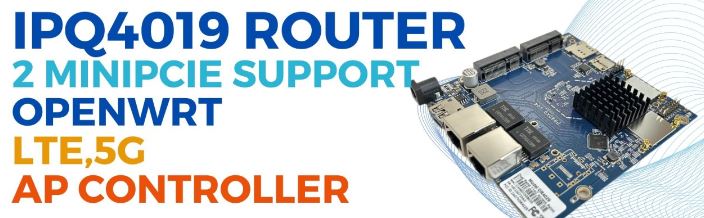
Empowering Customization and Connectivity: The IPQ4019-Based Industrial Board
In the realm of industrial connectivity, adaptability reigns supreme. Introducing the IPQ4019-based industrial board, a versatile solution engineered to offer unparalleled customization and connectivity options. Let’s explore its key features:
Tailored Dual LTE Support
– This board supports customizable configurations for dual LTE support, allowing for routerboard/baseboard+SOM setups tailored to specific requirements. Whether it’s optimizing bandwidth or ensuring redundancy, users can fine-tune their connectivity solutions with ease.
Efficient Network Segmentation via VLANs
– Recognizing the importance of network segmentation, this board seamlessly integrates VLAN support. Users can create distinct virtual networks within a single physical infrastructure, enhancing security and efficiency.
Customized LUCI Interface
– Elevate brand identity and user experience with a customized LUCI interface featuring the customer’s logo. This personalized touch adds a professional flair while maintaining familiarity for end-users.
Extended Range Firmware Customization
– Break through geographical barriers with custom firmware designed for long-distance transmission, reaching up to 20km. Whether it’s remote installations or expansive deployments, rest assured that firmware updates will reach even the most remote endpoints.
Seamless Integration with Leading Controllers
– Integrate effortlessly into existing network architectures with support for Wallys AP Controller and TIP Cloud Controller. Benefit from centralized management, configuration, and monitoring capabilities, enhancing operational efficiency and scalability.
Conclusion: Unmatched Flexibility for Industrial Connectivity
In conclusion, the IPQ4019-based industrial board stands as a beacon of innovation and adaptability in industrial connectivity. With its support for customizable LTE configurations, VLANs, branded interfaces, long-distance firmware transmission, and integration with leading management controllers, this board offers unparalleled flexibility and connectivity options. Whether optimizing performance, enhancing security, or streamlining operations, this versatile solution is poised to revolutionize industrial connectivity challenges.
DR4019
Featuring with industrial-grade IPQ4019/IPQ4029 chipset
Integrated with 2x 2 5G high power Radio module and 2×2 2.4G high power Radio module
Support 4.940GHz to 5.825GHz Frequency Range
Support 2.400GHz to 2.482GHz
Support 2 x 5G MMCX Connectors and 2×2.4G MMCX
Support 5MHz/10MHz/20MHz/40MHz/80MHz Bandwidth
Support 11ABGN/AC
Support fixed data rate
RoHS compliance ensure a high level protection of human health and the environment from risks that can be posed by chemicals
Our customers all use ATH11k drivers or QSDK factory drivers Different LINUX platforms require you to provide platform chip and driver printing information, and then COMPEX will provide customers with how to make patches to meet their needs.
Maybe you can refer to this article for QCA wifi6 modules from different manufacturer, but the process is similar.
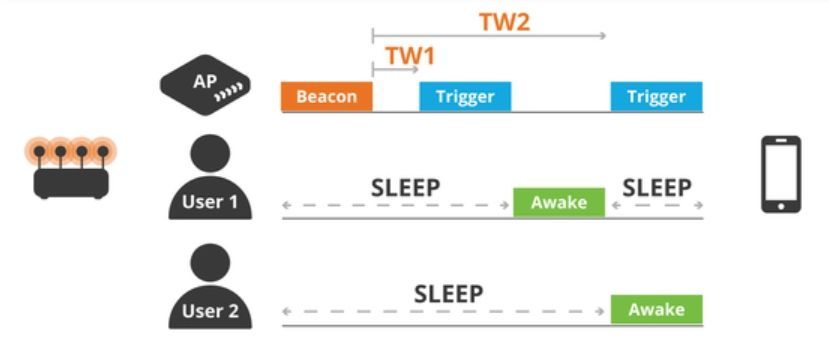
Wi-Fi 6 is making waves with its groundbreaking features, and Target Wake Time (TWT) is one of the highlights. Imagine a smarter way for Access Points (APs) and stations to synchronize their wake-up times for data transmission. It’s like setting alarms for a family living in different rooms, ensuring everyone wakes up at the most convenient time.
Here’s the deal: Without TWT, stations constantly listen for data transmissions, draining battery life unnecessarily. But with TWT, they negotiate specific wake-up times with the AP, conserving power and extending battery life significantly.
So, why does TWT matter? Well, in a nutshell, it’s the key to efficient energy management and improved network performance in Wi-Fi 6 devices. As enterprises embrace this new standard, understanding TWT becomes crucial for maximizing the benefits of Wi-Fi 6 technology.
Ready to dive deeper into the world of Wi-Fi 6? Stay tuned for more insights into its revolutionary features! 💻🚀
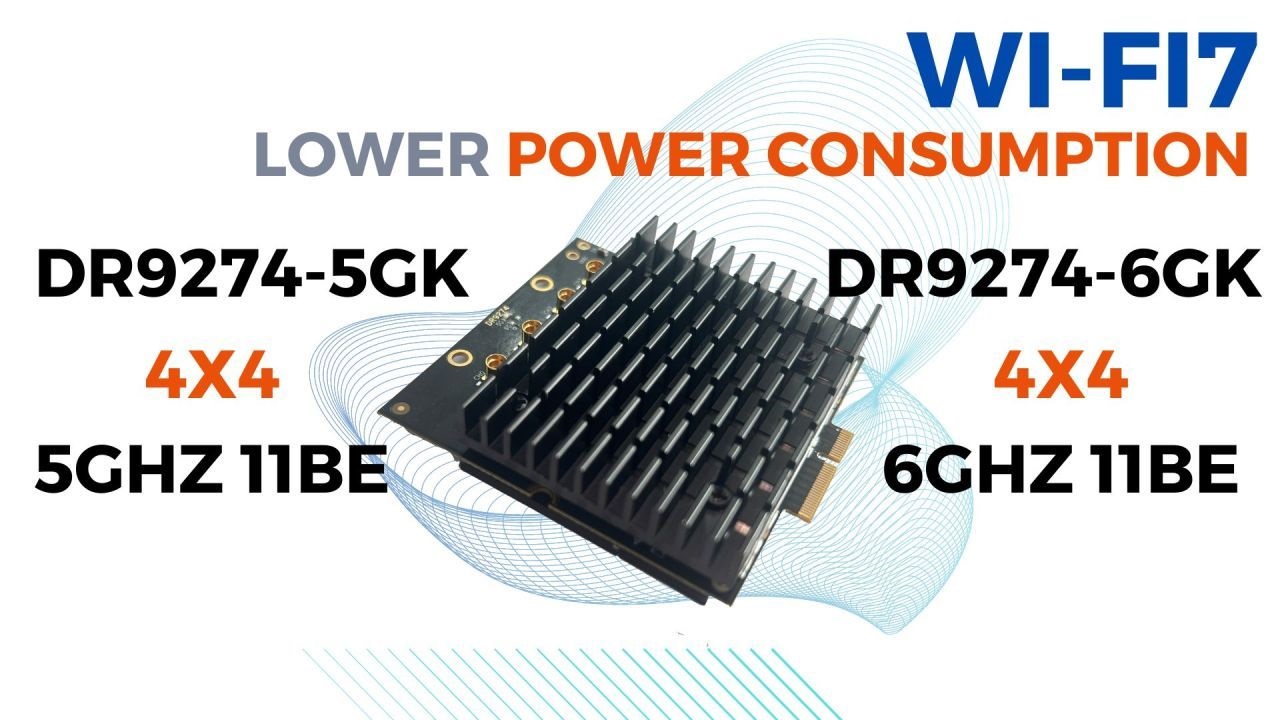
Upgrade your IIoT devices with 524WiFi’ NEW wifi7 Network cards – DR9274-5GK and DR9274-6GK! 📶🔌
Experience better performance and save energy with just 7W power consumption! ⚡️
Power usage is crucial for IIoT devices. Excessive power can harm device functionality and user experience. 😔
Industries like oil and gas, agriculture, healthcare, wildlife conservation, forestry, and water monitoring need IoT devices with long-lasting battery life.⏱️🔋
No more battery worries! Optimize your devices with 524WiFi’ power-efficient wifi7 Network cards for an efficient IIoT setup
Test now and revolutionize your IIoT experience! 💡✨
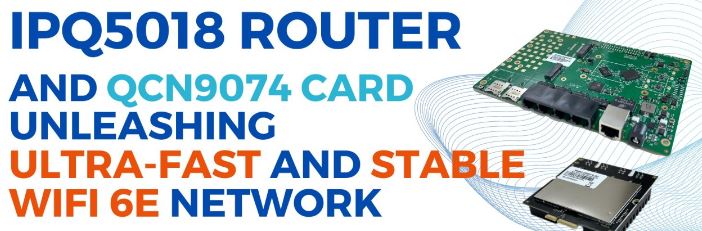
Experience the Power of WiFi 6E with IPQ5018 Router and QCN9074 Card Duo
Get ready to experience unparalleled speed and stability with the IPQ5018 Router and QCN9074 Card duo. Designed for high-performance wireless networking, the IPQ5018 boasts integrated 802.11ax Wi-Fi/Bluetooth 5.1 subsystems, delivering cost-effective and efficient connectivity.
IPQ5018
The IPQ5018 is a highly integrated System-on-Chip (SoC) designed and manufactured for high-performance and efficient wireless network applications, including home routers, mesh nodes, and gateways. It features integrated 802.11ax Wi-Fi/Bluetooth 5.1 subsystems, providing high efficiency and cost-effectiveness.
Key Features:
– Wi-Fi subsystem supports IEEE802.11ax, incorporating a wireless radio operating in the 2.4 GHz band with 2 antennas (2×2/40).
– Network subsystem:
– Low-power PCIe interface with L1 sub-states.
– Two Ethernet ports:
– One integrated GbE PHY.
– One SerDes supporting 3.125/1.25 Gbps Ethernet ports for external 2.5/1 GbE PHY. This SerDes operates in SGMII+ or SGMII mode to connect to 2.5 GbE PHY or single-port GbE PHY.
In today’s fast-paced digital world, a reliable and lightning-fast internet connection is essential for seamless connectivity. With the advent of WiFi 6E technology, users can now enjoy unprecedented speed, stability, and coverage. The combination of the IPQ5018 Router and QCN9074 Card delivers an unparalleled WiFi 6E experience, setting new standards for home and business networks.
The IPQ5018 Router is a powerhouse in the world of networking, equipped with advanced features and cutting-edge technology to provide ultra-fast and stable connectivity. Its robust hardware ensures maximum performance, while its intelligent software optimizes network traffic for an uninterrupted online experience.
Paired with the QCN9074 Card, this duo takes WiFi 6E to new heights. The QCN9074 Card is designed to maximize the capabilities of WiFi 6E, offering higher speeds, lower latency, and increased capacity compared to previous generations. With its advanced beamforming and MU-MIMO technology, the QCN9074 Card ensures optimal signal strength and coverage throughout your home or office.
Together, the IPQ5018 Router and QCN9074 Card create a WiFi 6E network that is not only blazing fast but also incredibly stable. Whether you’re streaming 4K videos, gaming online, or video conferencing with colleagues, you can count on a seamless and lag-free experience.
But the benefits don’t stop there. The IPQ5018 Router and QCN9074 Card also prioritize security, with robust encryption protocols and built-in firewalls to protect your network from cyber threats. Additionally, advanced parental controls and network management tools allow you to customize and monitor your network with ease.
In conclusion, the IPQ5018 Router and QCN9074 Card combination is the ultimate solution for those seeking a high-performance WiFi 6E network. Experience the future of connectivity today with unparalleled speed, stability, and coverage.
Router board DRiver 5018
DR5018 based on IPQ5018 chipset is an enterprise wireless module integrated with BT5.1 Radio module and 2×2 2.4G high power Radio module designed specifically to provide users with mobile access to high-bandwidth video streaming, voice, and data transmission for office and challenging RF environment in factories, warehouses establishment.
CPU: Qualcomm-Atheros IPQ5018
CPU Frequency: Dual-core ARM 64-bit A53 @1.0 GHz processor
System Memory: 512MB DDR3L 16-bit interface with 32-bit memory bus design (Optional support for 1G)
Ethernet Port: 4 x 1Gbps Ethernet Ports or 1 x 1Gbps Ethernet Port & PoE
NGFF Slot: M.2 Card Slot for 5G (QUECTEL RM 500Q-GL); M.2 Card Slot for QCN9074 WIFI 6E Card
PoE: Support
DC Jack: 12V power supply
LED Header: LED for power, WiFi strength
Serial Port: Support
Wireless: On-board 2×2 2.4GHz MU-MIMO OFDMA 802.11b/802.11g/802.11n/802.11ax, max 23dBm per chain; 2x IPEX Connectors
Empowering Customization and Connectivity: The IPQ4019-Based Industrial Board
In the realm of industrial connectivity, adaptability reigns supreme. Introducing the IPQ4019-based industrial board, a versatile solution engineered to offer unparalleled customization and connectivity options. Let’s explore its key features:
Tailored Dual LTE Support
– This board supports customizable configurations for dual LTE support, allowing for routerboard/baseboard+SOM setups tailored to specific requirements. Whether it’s optimizing bandwidth or ensuring redundancy, users can fine-tune their connectivity solutions with ease.
Efficient Network Segmentation via VLANs
– Recognizing the importance of network segmentation, this board seamlessly integrates VLAN support. Users can create distinct virtual networks within a single physical infrastructure, enhancing security and efficiency.
Customized LUCI Interface
– Elevate brand identity and user experience with a customized LUCI interface featuring the customer’s logo. This personalized touch adds a professional flair while maintaining familiarity for end-users.
Extended Range Firmware Customization
– Break through geographical barriers with custom firmware designed for long-distance transmission, reaching up to 20km. Whether it’s remote installations or expansive deployments, rest assured that firmware updates will reach even the most remote endpoints.
Seamless Integration with Leading Controllers
– Integrate effortlessly into existing network architectures with support for Wallys AP Controller and TIP Cloud Controller. Benefit from centralized management, configuration, and monitoring capabilities, enhancing operational efficiency and scalability.
Conclusion: Unmatched Flexibility for Industrial Connectivity
In conclusion, the IPQ4019-based industrial board stands as a beacon of innovation and adaptability in industrial connectivity. With its support for customizable LTE configurations, VLANs, branded interfaces, long-distance firmware transmission, and integration with leading management controllers, this board offers unparalleled flexibility and connectivity options. Whether optimizing performance, enhancing security, or streamlining operations, this versatile solution is poised to revolutionize industrial connectivity challenges.
DR4019 / DR4029
Featuring with industrial-grade IPQ4019/IPQ4029 chipset
Integrated with 2x 2 5G high power Radio module and 2×2 2.4G high power Radio module
Support 4.940GHz to 5.825GHz Frequency Range
Support 2.400GHz to 2.482GHz
Support 2 x 5G MMCX Connectors and 2×2.4G MMCX
Support 5MHz/10MHz/20MHz/40MHz/80MHz Bandwidth
Support 11ABGN/AC
Support fixed data rate
RoHS compliance ensure a high level protection of human health and the environment from risks that can be posed by chemicals